How to test a PWA on iPhone (and from localhost)
Why your PWA works on localhost and breaks on the phone, how to get HTTPS to an iPhone in five minutes, and what iOS still does differently in 2026.
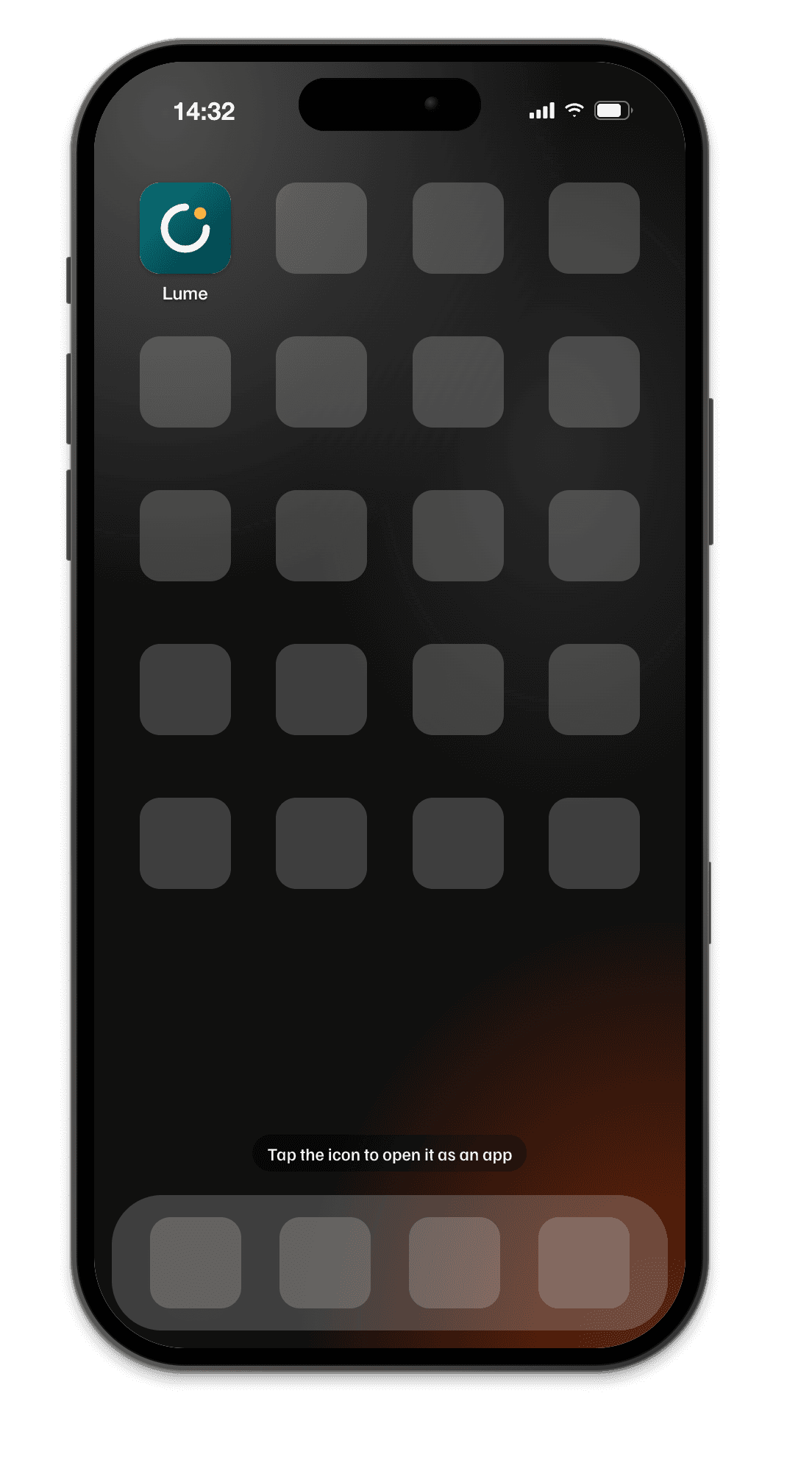
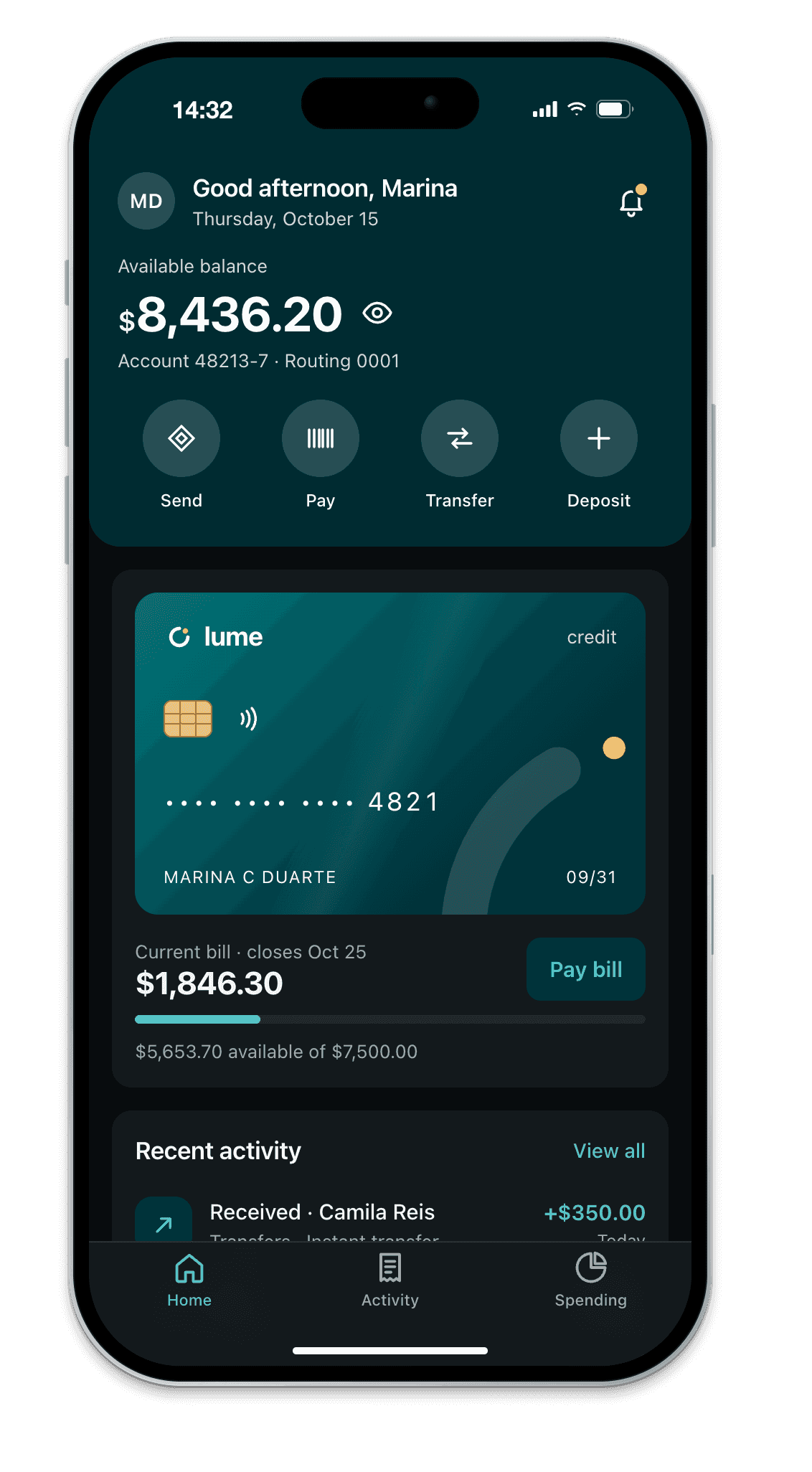
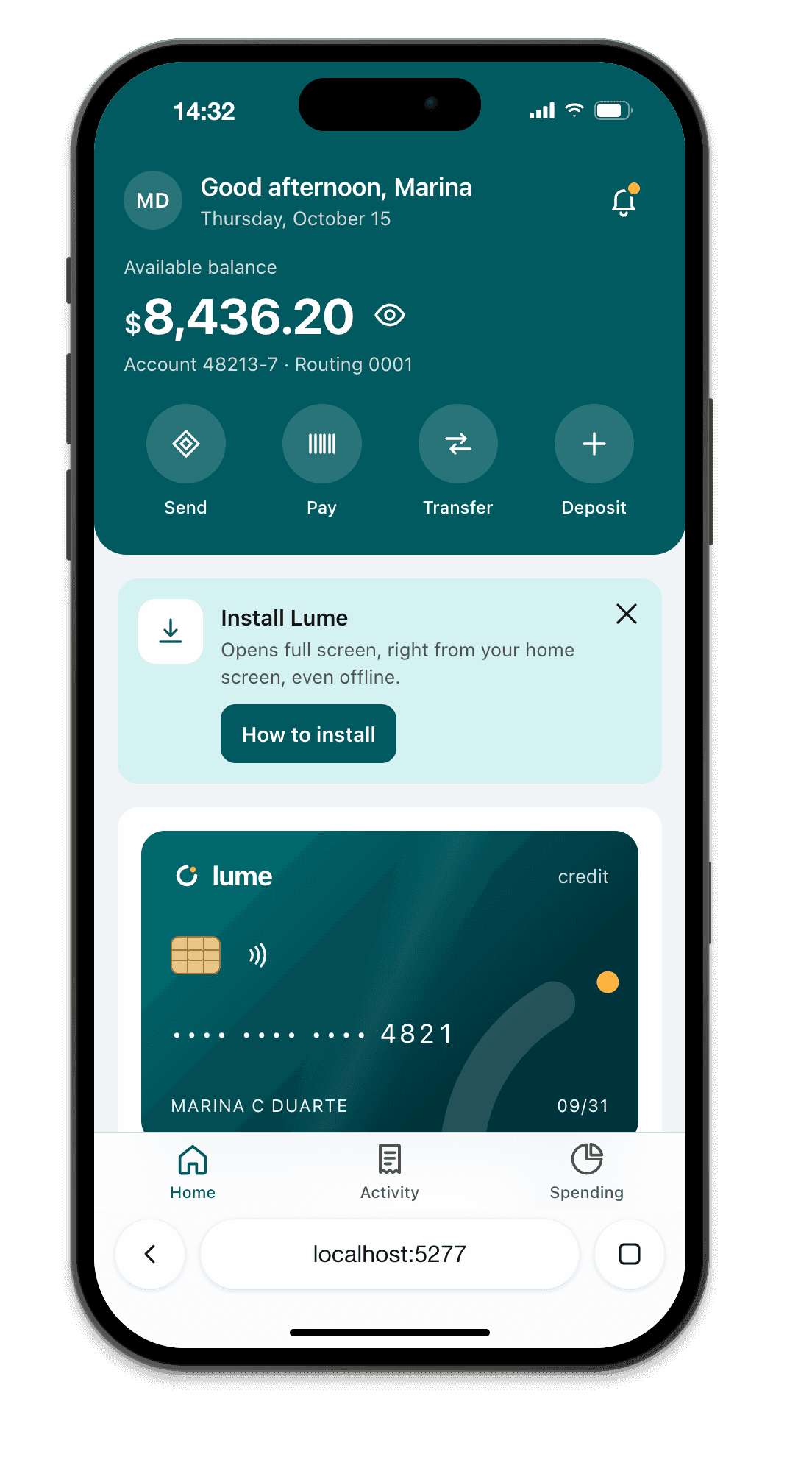
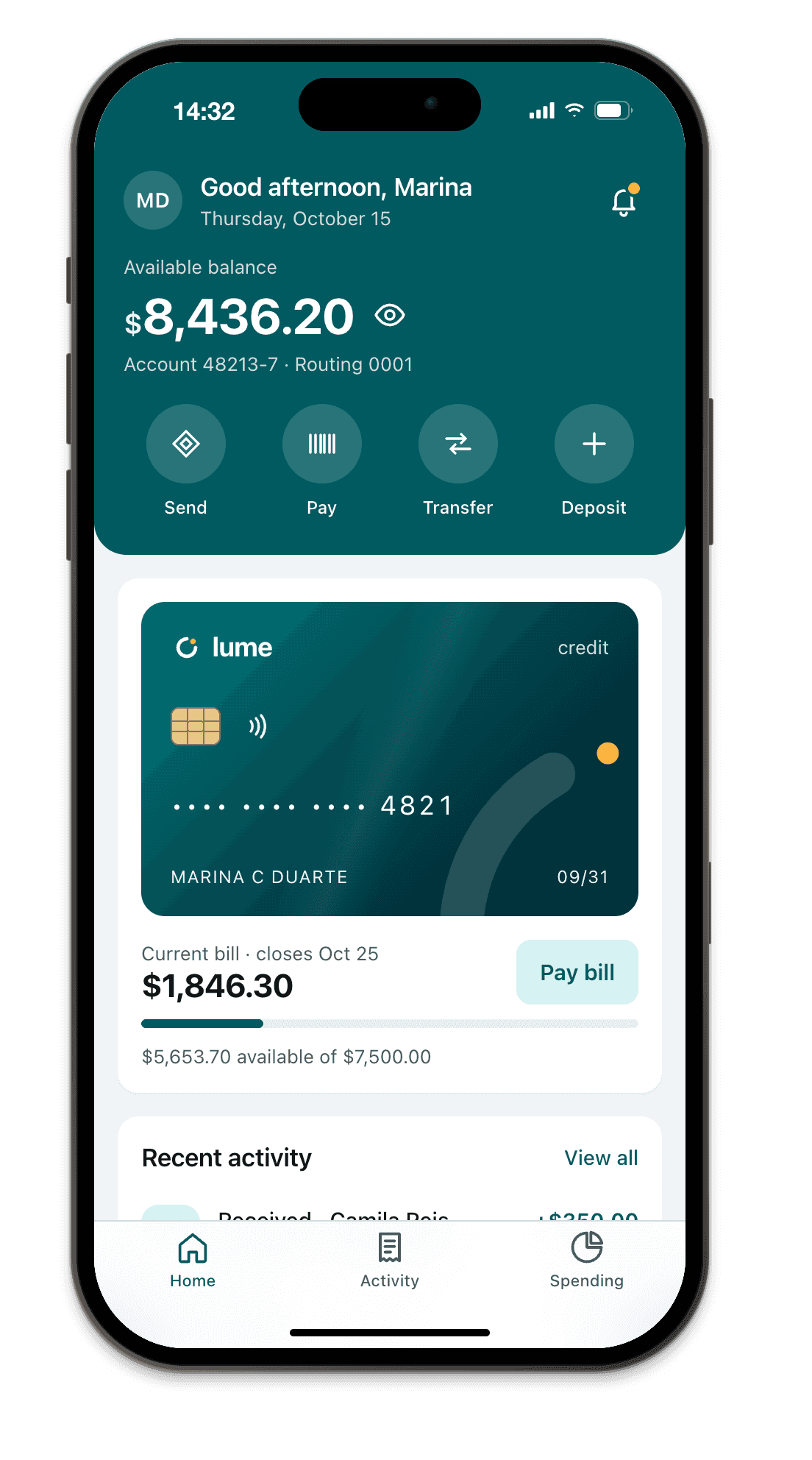
A PWA has two lives. In the first it’s a website in Safari. In the second, after Add to Home Screen, it opens as an app: no toolbar, its own icon, content running up to the Dynamic Island and the home indicator, and (if your service worker is right) working offline. Most PWA bugs live in the second life, and that’s the one almost nobody tests before shipping.
This guide covers the part the other tutorials skip: getting your local build onto a real iPhone with HTTPS, and what changed in iOS 26.
The four ways to test, and what each catches
| Method | Service worker | Installed (standalone) layout | Real iOS behavior | Setup |
|---|---|---|---|---|
| Desktop Chrome, localhost | Yes | Desktop window only | No | None |
| Framed device simulation (Breakpane App mode) | Yes, Chromium | Yes, with each iPhone’s safe areas | No | Minutes |
| iPhone + HTTPS tunnel | Yes | Yes | Yes | 5 minutes |
| iPhone + mkcert on your LAN | Yes | Yes | Yes | 15 minutes, once |
| Xcode iOS Simulator (Mac only) | Yes | Yes | Mostly | Xcode install |
Why it works on localhost and breaks on the phone
Service workers only register in a secure context. Browsers treat http://localhost as secure, so everything works on your laptop. Your phone can’t reach your laptop’s localhost; it reaches http://192.168.0.12:5173, which is plain HTTP on an IP address, so it is not a secure context. The page loads, but navigator.serviceWorker is undefined, nothing caches and the install does not behave like an app.
Quick check in the phone’s console (or as a temporary on-page log):
console.log(window.isSecureContext, 'serviceWorker' in navigator);
// false false  → you need HTTPS
You have two ways to fix it.
Option A: an HTTPS tunnel (fastest)
A tunnel gives your dev server a public https:// URL with a valid certificate. Nothing to install on the iPhone.
# Cloudflare quick tunnel, no account needed
cloudflared tunnel --url http://localhost:5173

# or ngrok
ngrok http 5173
Open the printed https://….trycloudflare.com URL in Safari on the iPhone. Two things to know: Vite blocks unknown hosts, so allow the tunnel host, and hot reload over a tunnel can be flaky, so expect to refresh by hand.
// vite.config.ts
export default defineConfig({
  server: { allowedHosts: ['.trycloudflare.com', '.ngrok-free.app'] },
});
The URL changes each time you start a quick tunnel. Since the installed app is tied to its origin, a new URL means a new install.
Option B: mkcert on your network (best for daily work)
mkcert creates a local certificate authority and certificates your devices trust. One time setup:
mkcert -install
mkcert 192.168.0.12 localhost
# creates 192.168.0.12+1.pem and 192.168.0.12+1-key.pem
Then trust the CA on the iPhone:
- Find the CA with
mkcert -CAROOTand sendrootCA.pemto the iPhone (AirDrop or email). - Install it in Settings › General › VPN & Device Management (iOS shows it as a downloaded profile).
- Turn on full trust in Settings › General › About › Certificate Trust Settings. Without this step Safari still rejects the certificate.
Point your dev server at the files:
// vite.config.ts
import fs from 'node:fs';
export default defineConfig({
  server: {
    host: true,
    https: { key: fs.readFileSync('192.168.0.12+1-key.pem'), cert: fs.readFileSync('192.168.0.12+1.pem') },
  },
});
# Next.js
next dev -H 0.0.0.0 --experimental-https \
  --experimental-https-key ./192.168.0.12+1-key.pem \
  --experimental-https-cert ./192.168.0.12+1.pem
Now https://192.168.0.12:5173 is a secure context on the phone, with hot reload intact.
Install it on the iPhone
In Safari: Share › Add to Home Screen. There is no install prompt on iOS and no beforeinstallprompt event, so if your UI shows an install button, show iOS users the Share instructions instead.
Since iOS 16.4, Chrome, Edge and other browsers on iPhone can add to the home screen too. Since iOS 26, every site added to the home screen opens as a web app by default, even without a manifest; the user can switch Open as Web App off in the sheet.
Open the app from the icon and check:
- Standalone mode. Your CSS and JS can detect it:
@media (display-mode: standalone) {
  .install-banner { display: none; }
}
const installed = matchMedia('(display-mode: standalone)').matches || navigator.standalone === true;
- Safe areas. Without the Safari toolbar, your header sits under the status bar and your tab bar under the home indicator. With
viewport-fit=coverin the viewport meta, pad them withenv(safe-area-inset-top)andenv(safe-area-inset-bottom). If the values stay at zero, see why safe-area-inset-bottom is not working. - Status bar.
<meta name="apple-mobile-web-app-status-bar-style" content="black-translucent">lets your content run under the status bar (so the top inset matters);defaultkeeps a solid bar. - Icon. iOS uses an
apple-touch-iconof 180×180 if present, and Safari 26 also reads the manifest icons. - Splash. iOS doesn’t build a splash screen from the manifest the way Android does. Without
apple-touch-startup-imagetags you get a blank screen in your background color. - Offline. Turn on Airplane Mode, open the app from the icon, and confirm your cached shell loads instead of an error.
Debug the installed app
With a Mac: on the iPhone, enable Settings › Apps › Safari › Advanced › Web Inspector. On the Mac, enable Safari’s Develop menu (Safari › Settings › Advanced). Connect the iPhone by cable, open the home screen app, and it shows up under Develop › your iPhone, service worker included.
Without a Mac: inspect.dev inspects iOS pages from Windows or Linux (paid, with a small free tier). Otherwise, log to the page itself during testing.
Android: connect by USB, open chrome://inspect on the desktop and set up port forwarding for 5173. The phone then loads http://localhost:5173, which is a secure context, no certificate needed.
The iOS limits to plan around
- No install prompt. Users must use the Share menu.
- Web Push works only for installed apps (iOS 16.4+), and permission must be requested from a tap.
- Storage is separate. The home screen app doesn’t share cookies or storage with Safari, so a user logged in in Safari is logged out in the app.
- Storage can be evicted. Safari deletes script-written storage for sites not used in 7 days; WebKit says home screen apps have their own counter and it does not expect their first party data to be removed, but storage remains best effort. Call
navigator.storage.persist()and keep the server as the source of truth. - To start clean, delete the icon, then clear the site in Settings › Apps › Safari › Advanced › Website Data.
A faster loop while you code
Reinstalling on the phone after every CSS change is slow. Breakpane shows your localhost in App mode, the way it looks installed, inside iPhones and Androids with each model’s safe areas and status bar, floating next to your editor on Windows or macOS. Its PWA diagnosis flags what’s missing in the manifest, and airplane mode tests your offline path. It renders with Chromium, not WebKit, so the push, storage and Safari specifics above still need the real iPhone pass before you ship.