Every screen, on top of your code.
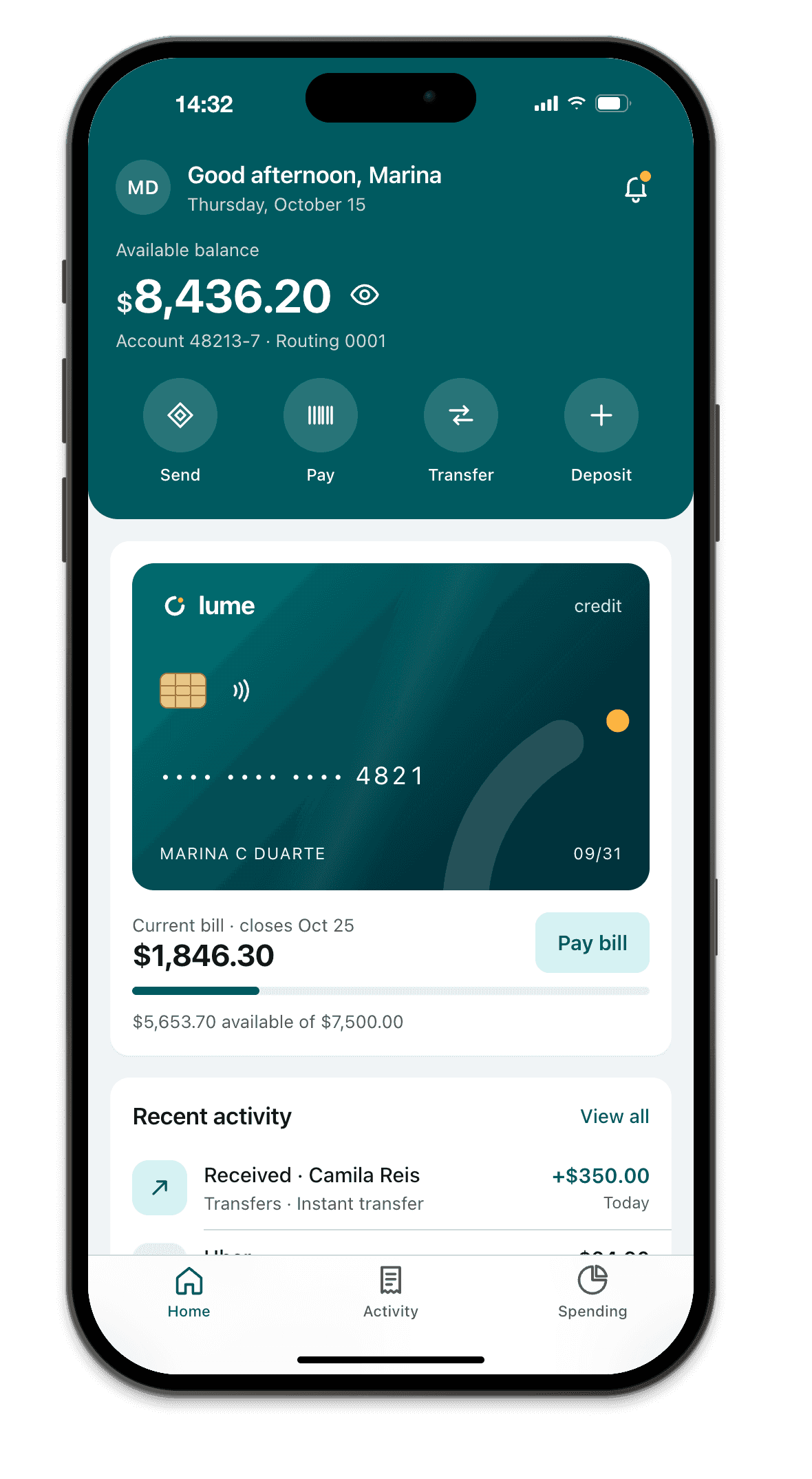
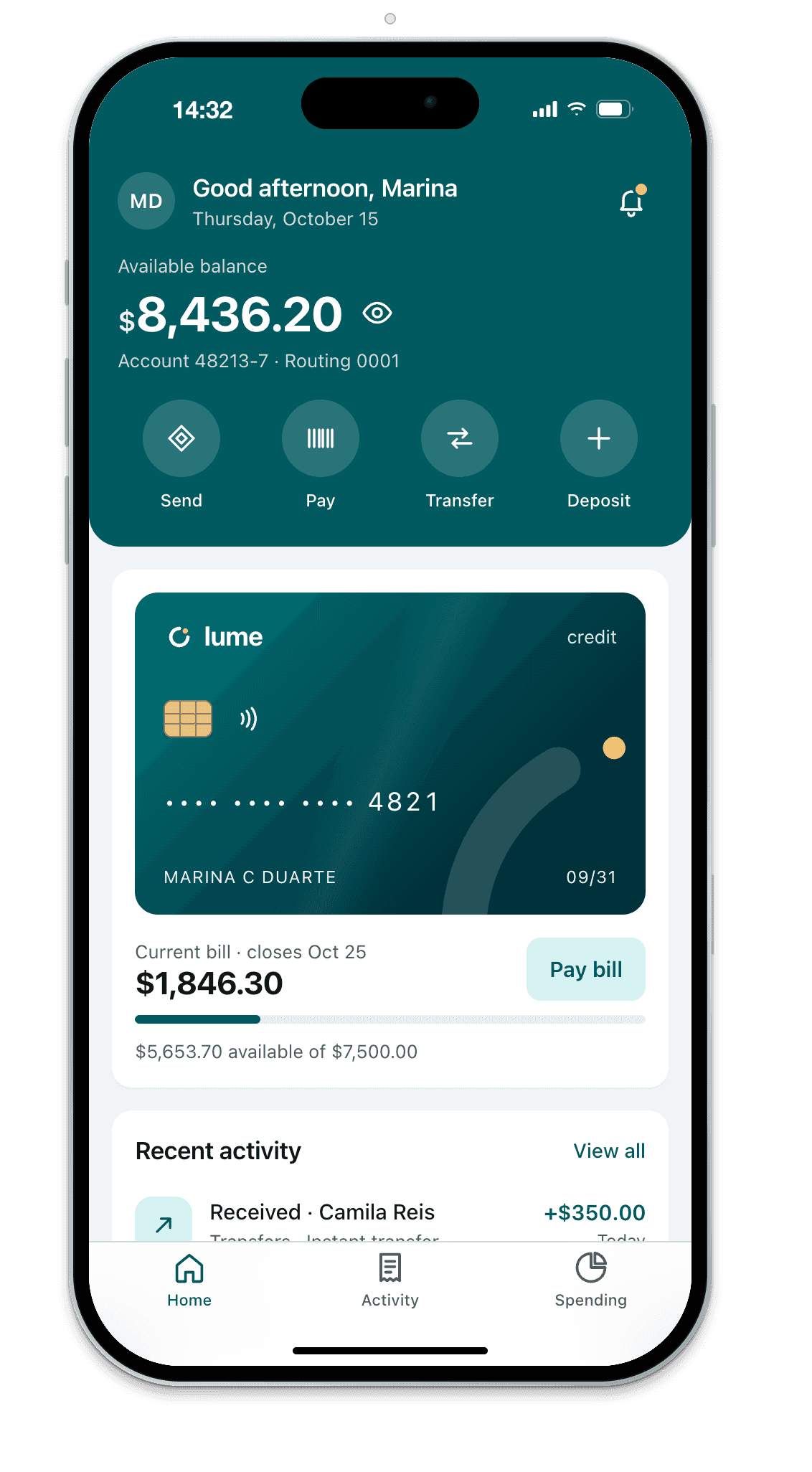
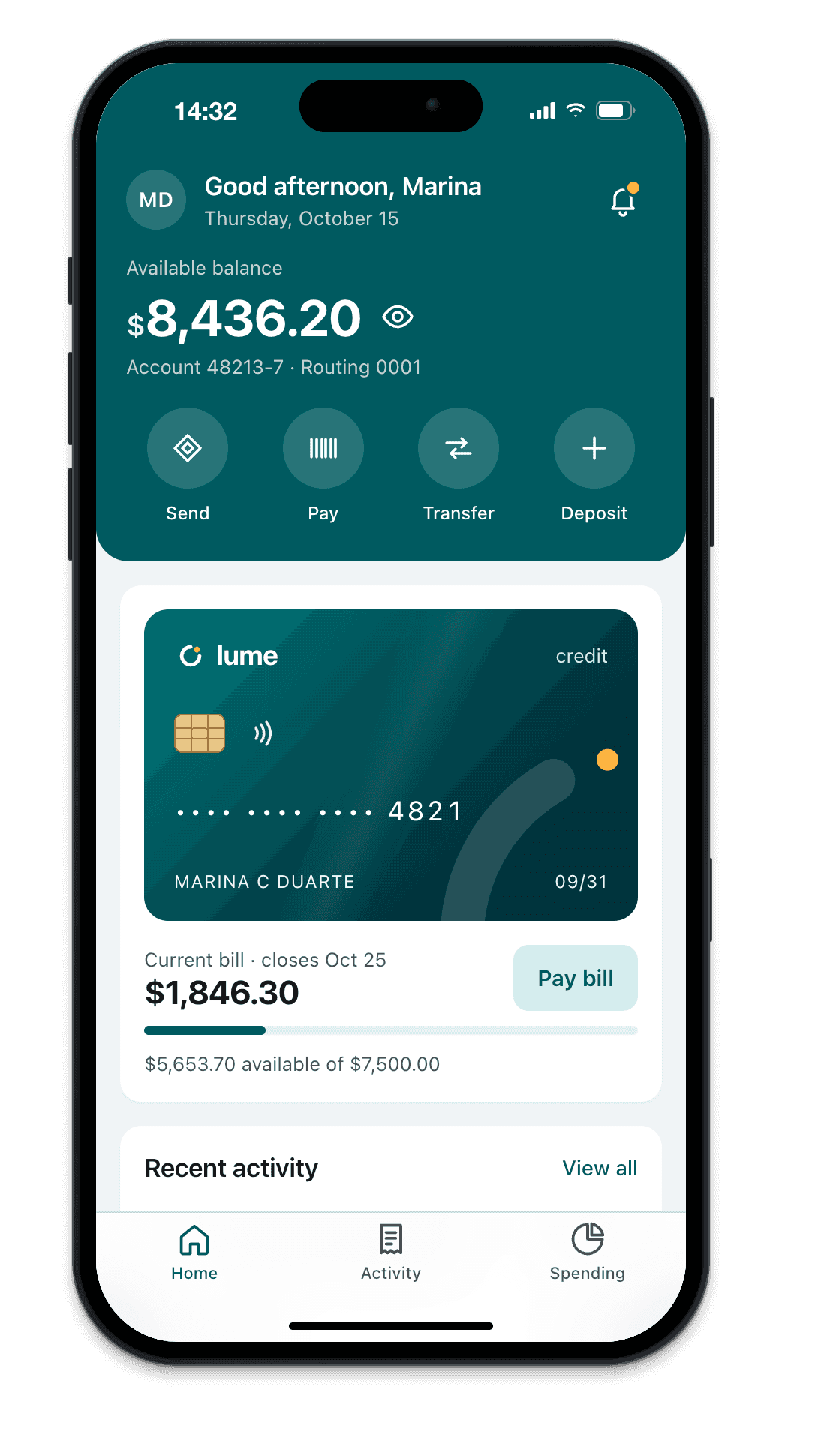
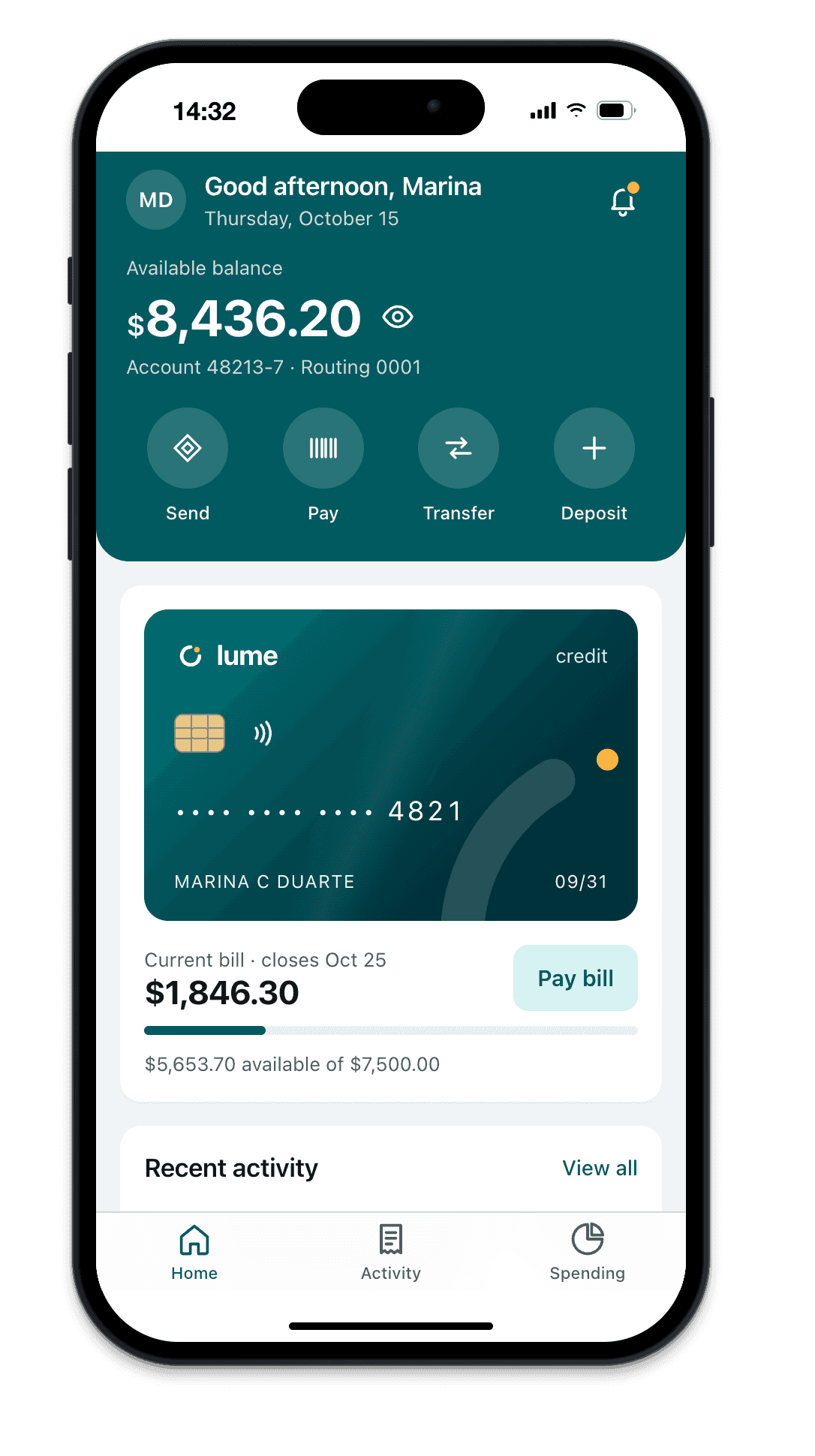
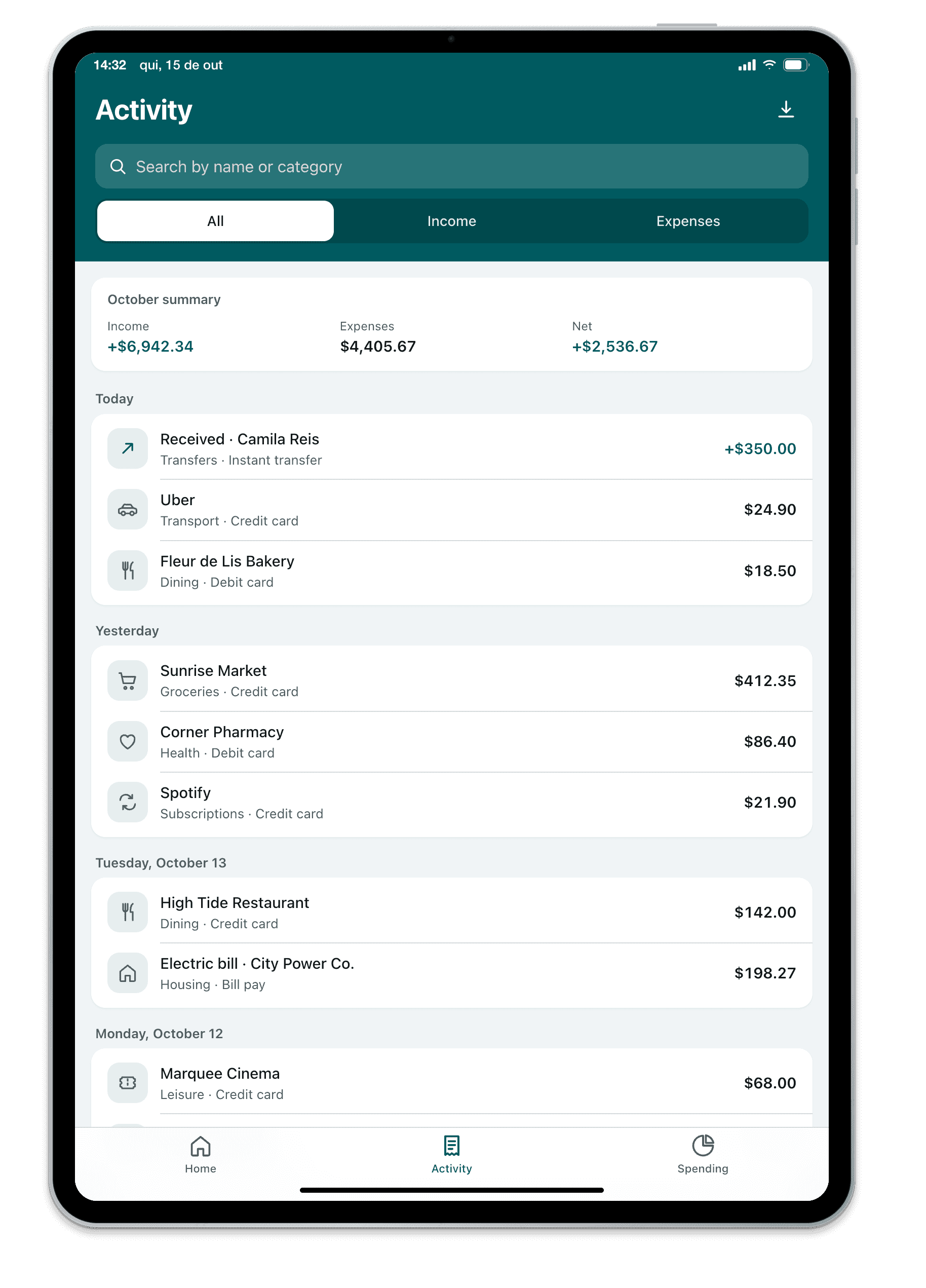
iPhones, Androids, iPads and laptops with real dimensions float in front of your editor, with your dev server live. Save and see it on all of them. And your coding agent tests on them while you watch.
You're on your phone. Send the link to your email and open it on your Mac or PC when you sit down to code.
Mac with Apple silicon or Intel and Windows 10 and 11. We use the email only to send this link, once, and don't keep it.
Free for 14 days, no card · Mac (Apple silicon or Intel) and Windows 10 and 11 · no Xcode
On first launch, macOS just confirms you want to open the app. How to open it
On Windows, the app comes from the Microsoft Store and installs with no warning.
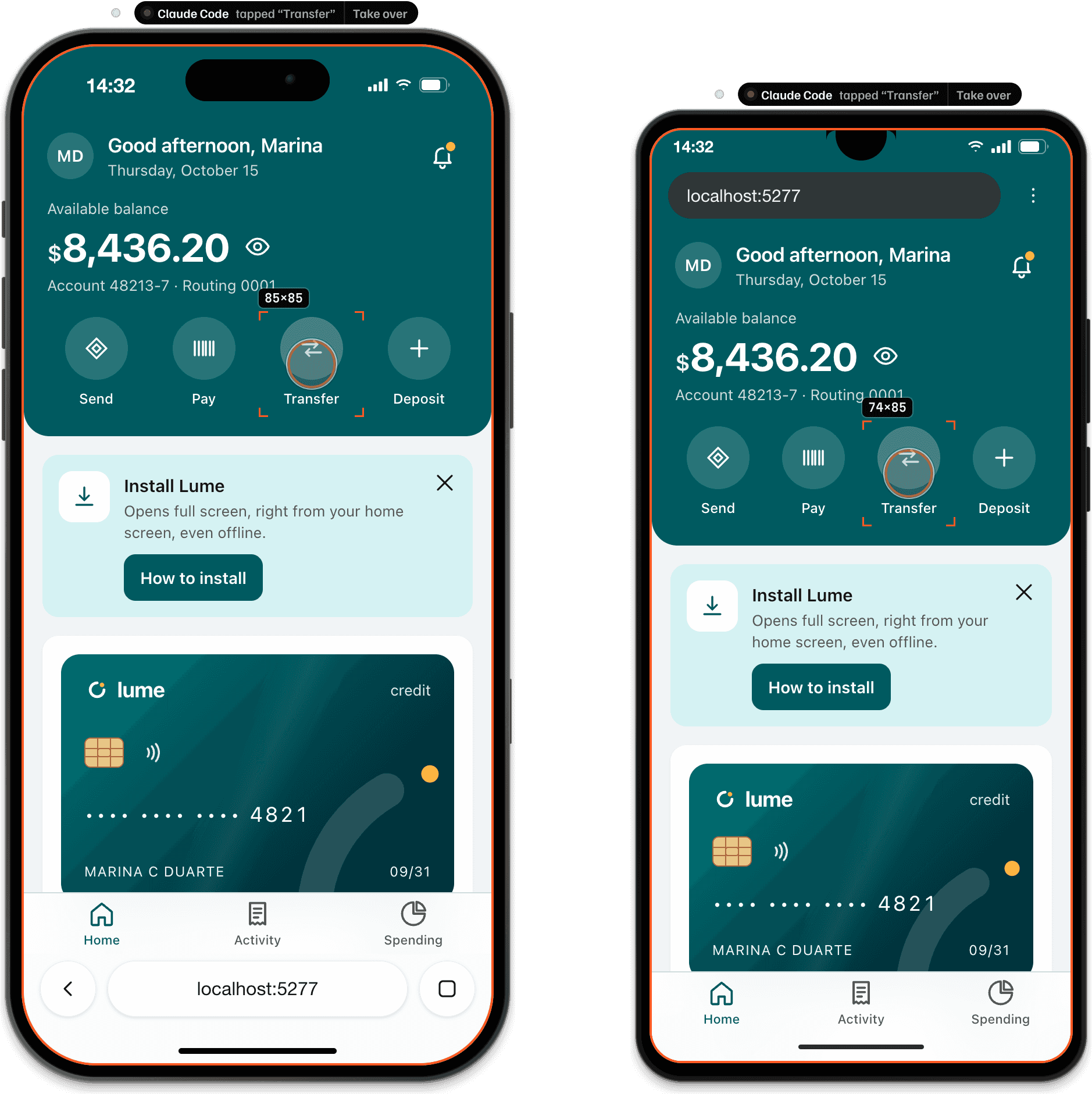
- iPhone 17 Pro402×718 · Browsertapped “Transfer”: ok
- Galaxy A06360×716 · Browsertapped “Transfer”: ok
Always on top. Even in full screen.
The device stays above your editor, terminal and browser, even in full screen: drag it to a corner and keep coding. When the cursor leaves, the controls fade and only the screen remains. On Mac it lives in the menu bar; on Windows, in the tray.
- Light enough to keep open all day
- Save, and it updates: your project's reload works as usual
- Restarted the server? The page comes back on its own
- In front of everything, or behind your windows when you wantShift + Command + FCtrl + Shift + F
- Drag it by the frame; pull a corner to resize it on screen
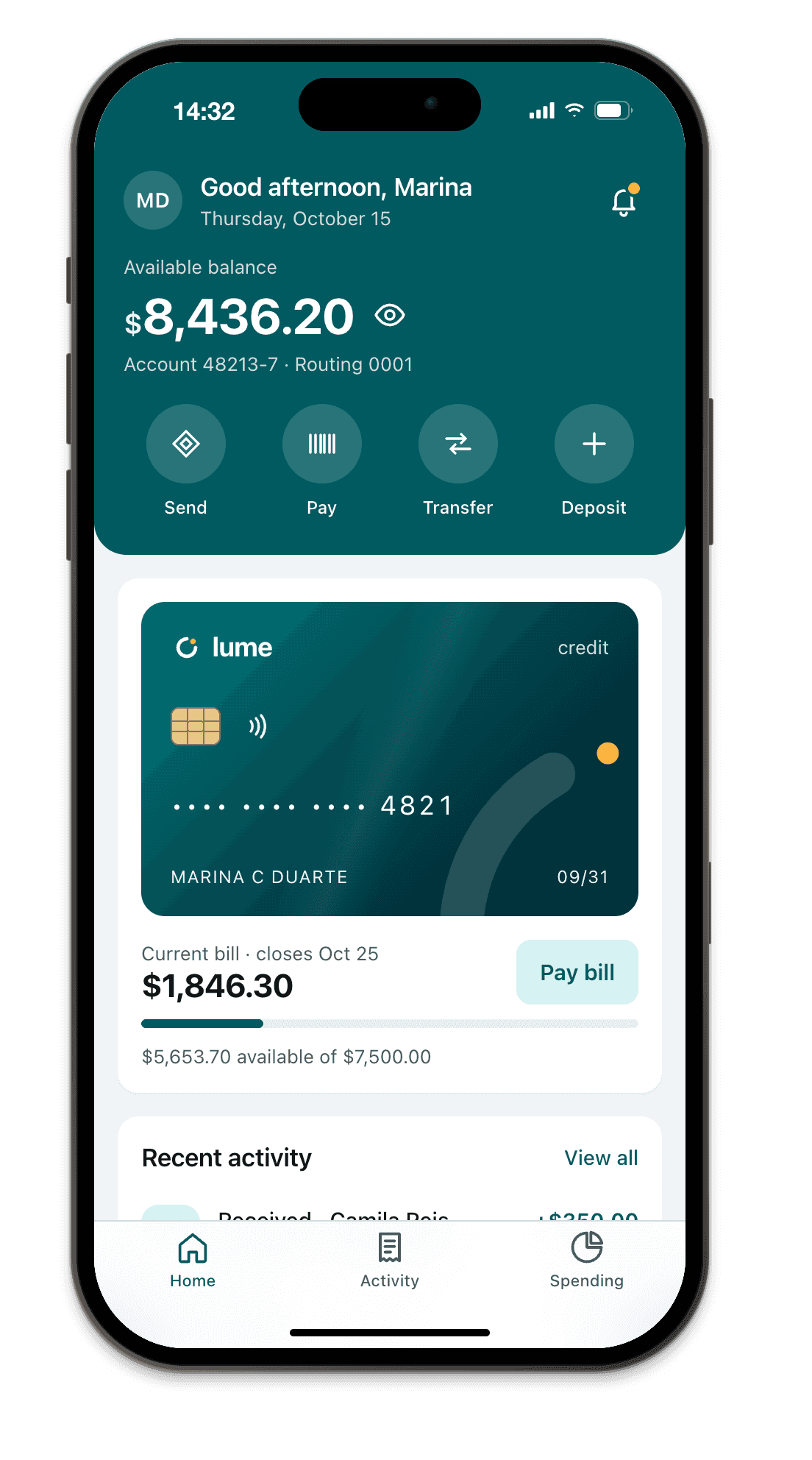
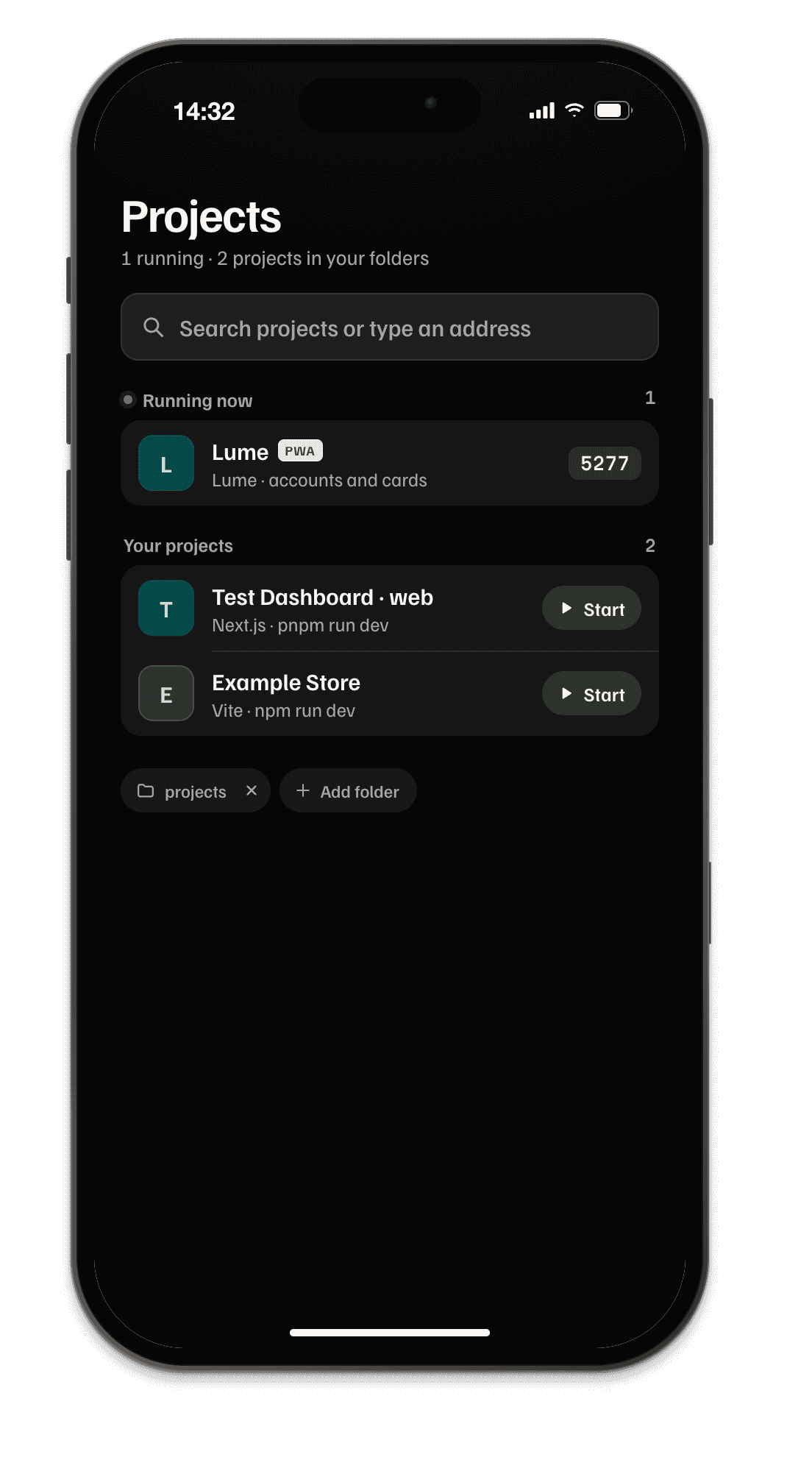
Open it and your projects are already there.
Breakpane already shows what's running on your computer, with each project's port and name. Stopped ones show up with Start: it runs the dev server with the same Node as your terminal and opens it when it's ready.
Your coding agent tests your site on several devices. You see every tap. Beta
Connect the agent you already use, like Claude Code, Codex or Cursor, or any other MCP-compatible tool. It opens your site on several devices, then taps, types and audits. You see every action.
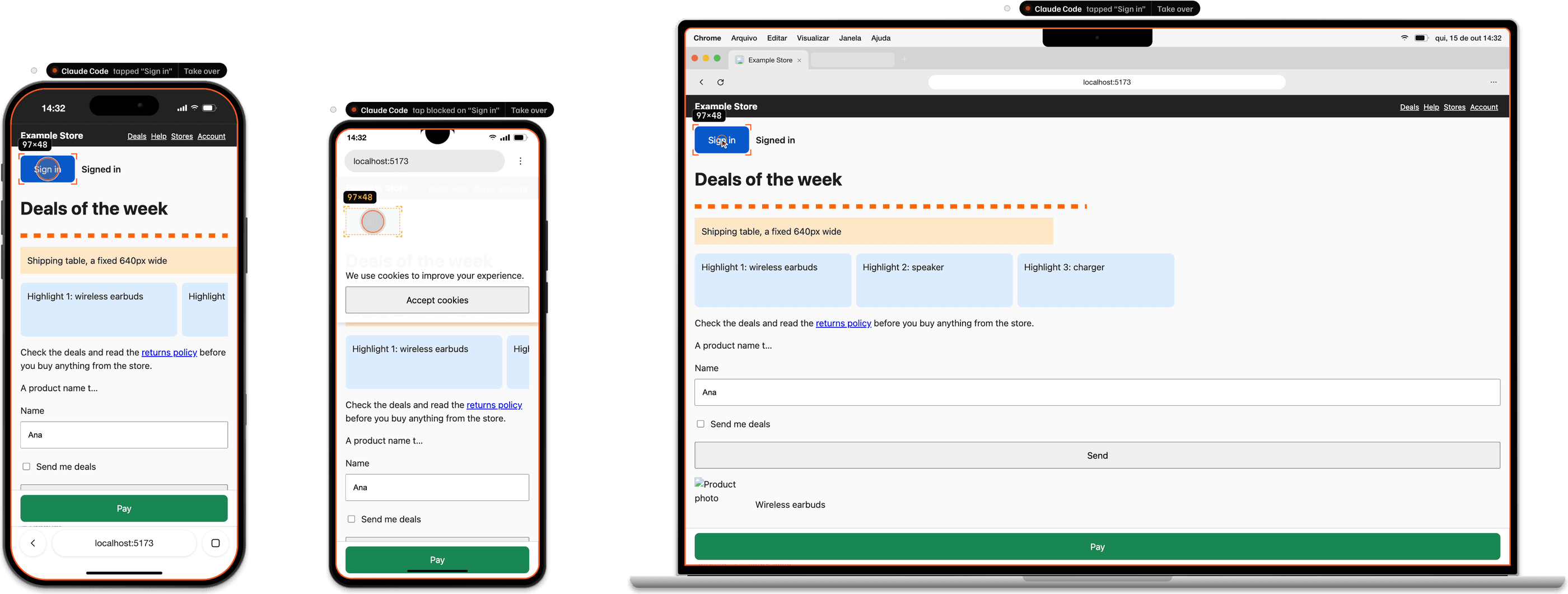
- iPhone 17 Pro402×718 · Browsertapped “Sign in”: ok
- Galaxy A06360×716 · Browser“Sign in” covered by div.cookie
- MacBook Air 13″1470×838 · Browsertapped “Sign in”: ok
1 of 3
Turn on agents from the button on the rail, next to the device.
2 of 3
Connect your agent; the most popular ones connect with one click.
3 of 3
Paste one of the ready-made prompts into a new conversation.
The devices that matter. And any other, made to measure.
Your window right now:
iPhones from the 17 Pro Max to the SE, Pixel, Galaxy, 360×800 entry-level screens, iPads, MacBooks and Windows laptops, with the real device's viewport, density and safe areas. For everything else, Custom: exact width, height and density.
- iPhone 17 Pro · 402×874 @3x
- iPhone 17 Pro Max · 440×956 @3x
- iPhone Air · 420×912 @3x
- iPhone 16 · 393×852 @3x
- iPhone 15 · 393×852 @3x
- iPhone 16e · 390×844 @3x
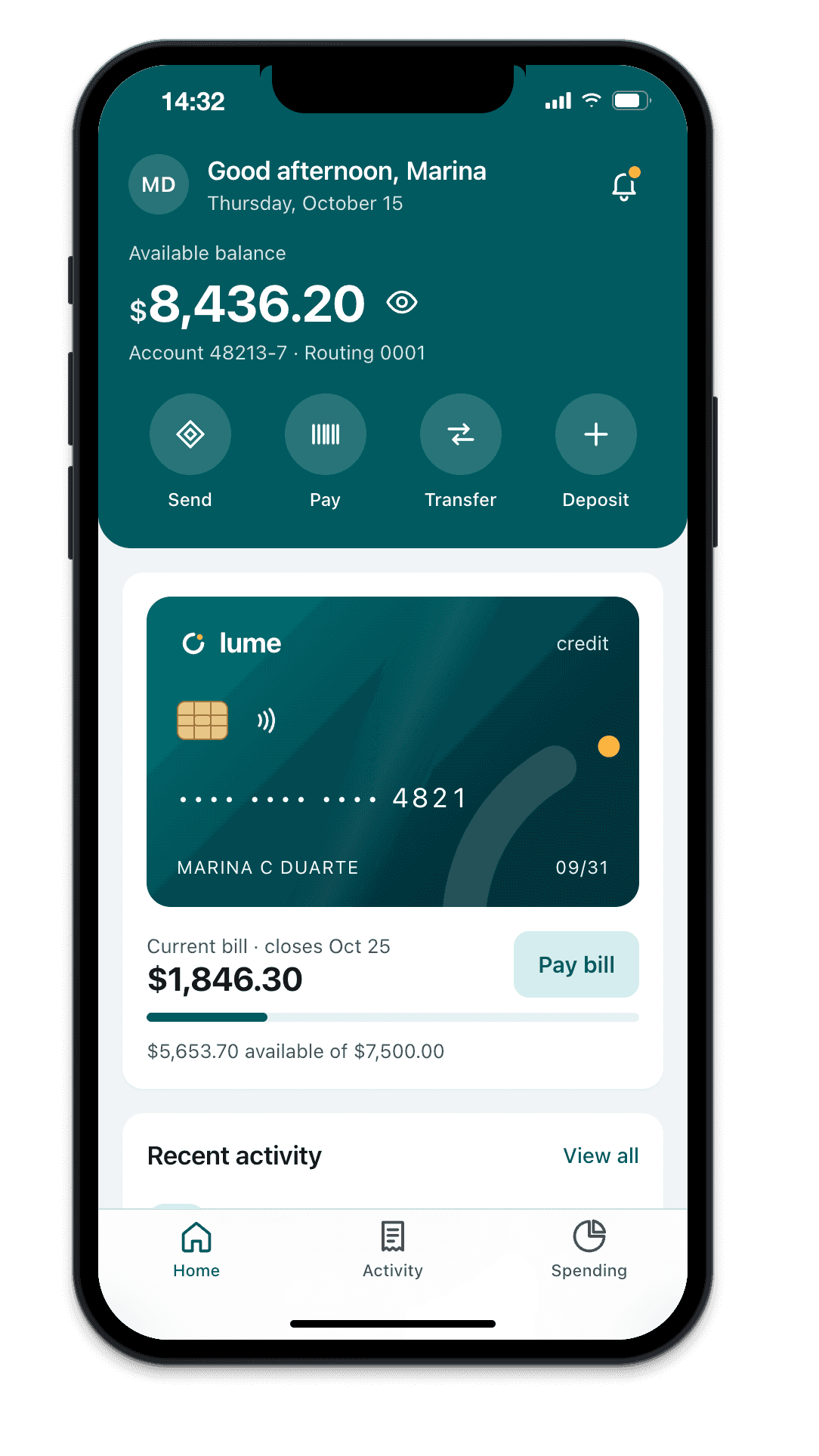
- iPhone 13 mini · 375×812 @3x
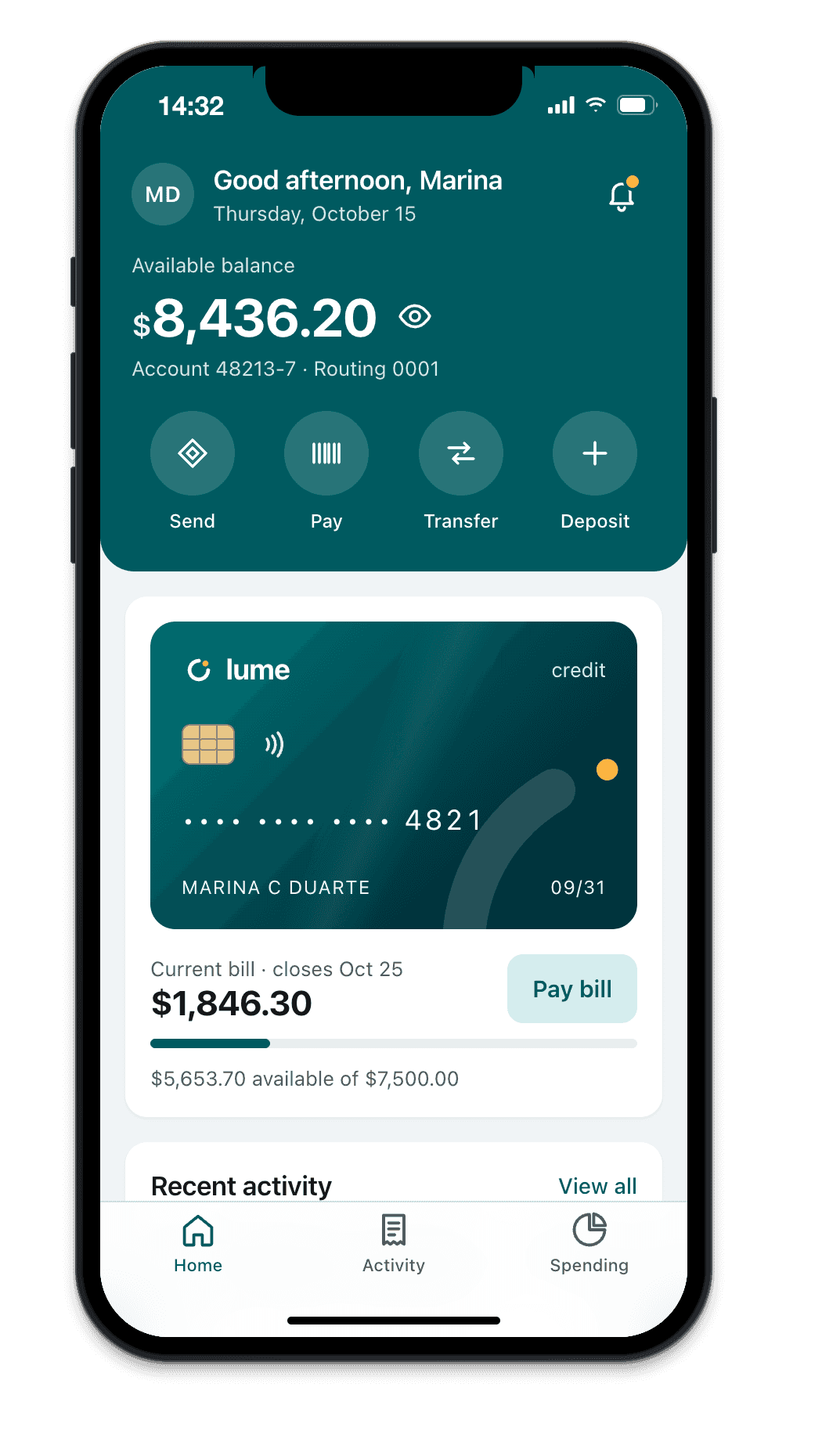
- iPhone SE · 375×667 @2x
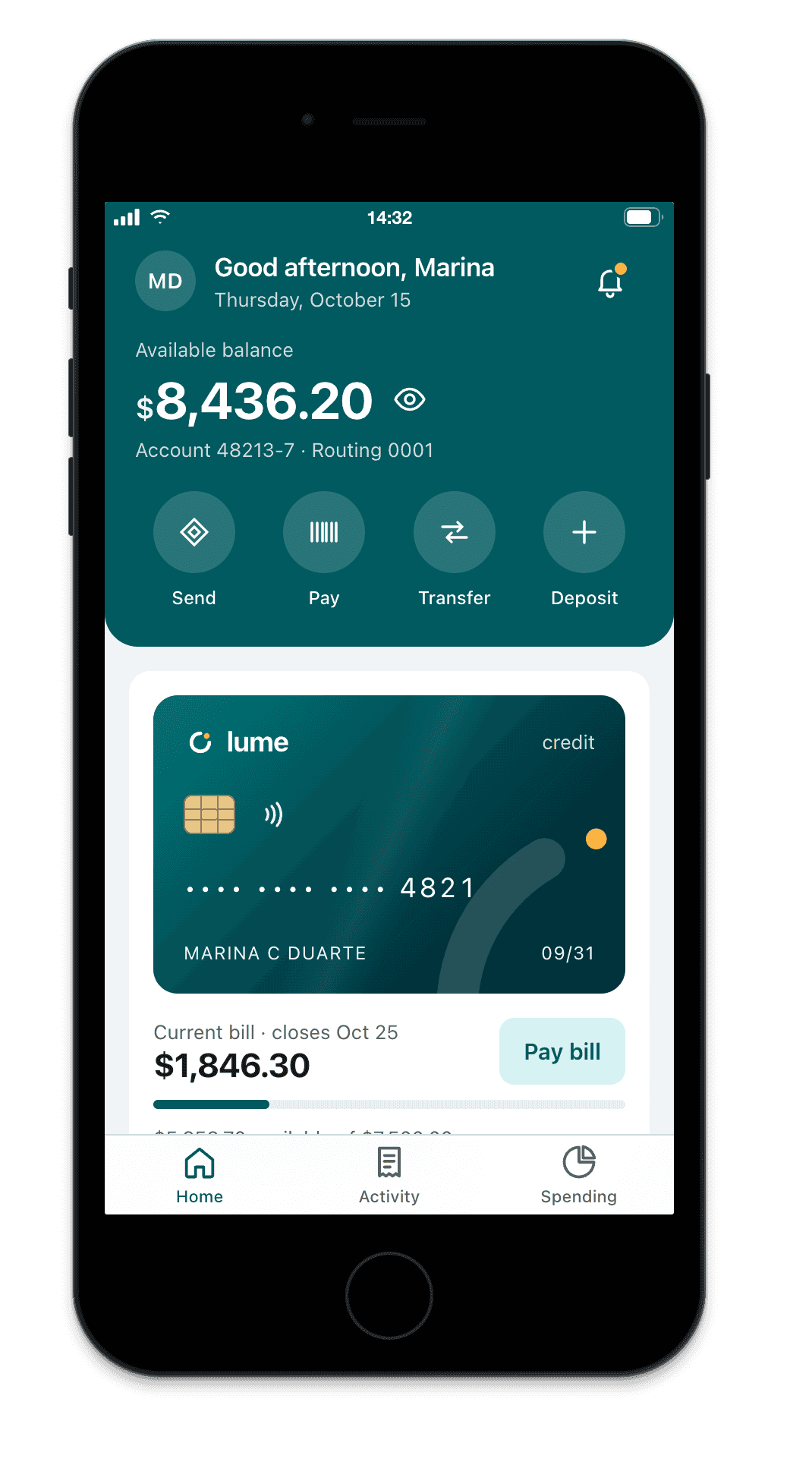
- iPhone Duo (closed) · 466×678 @3x
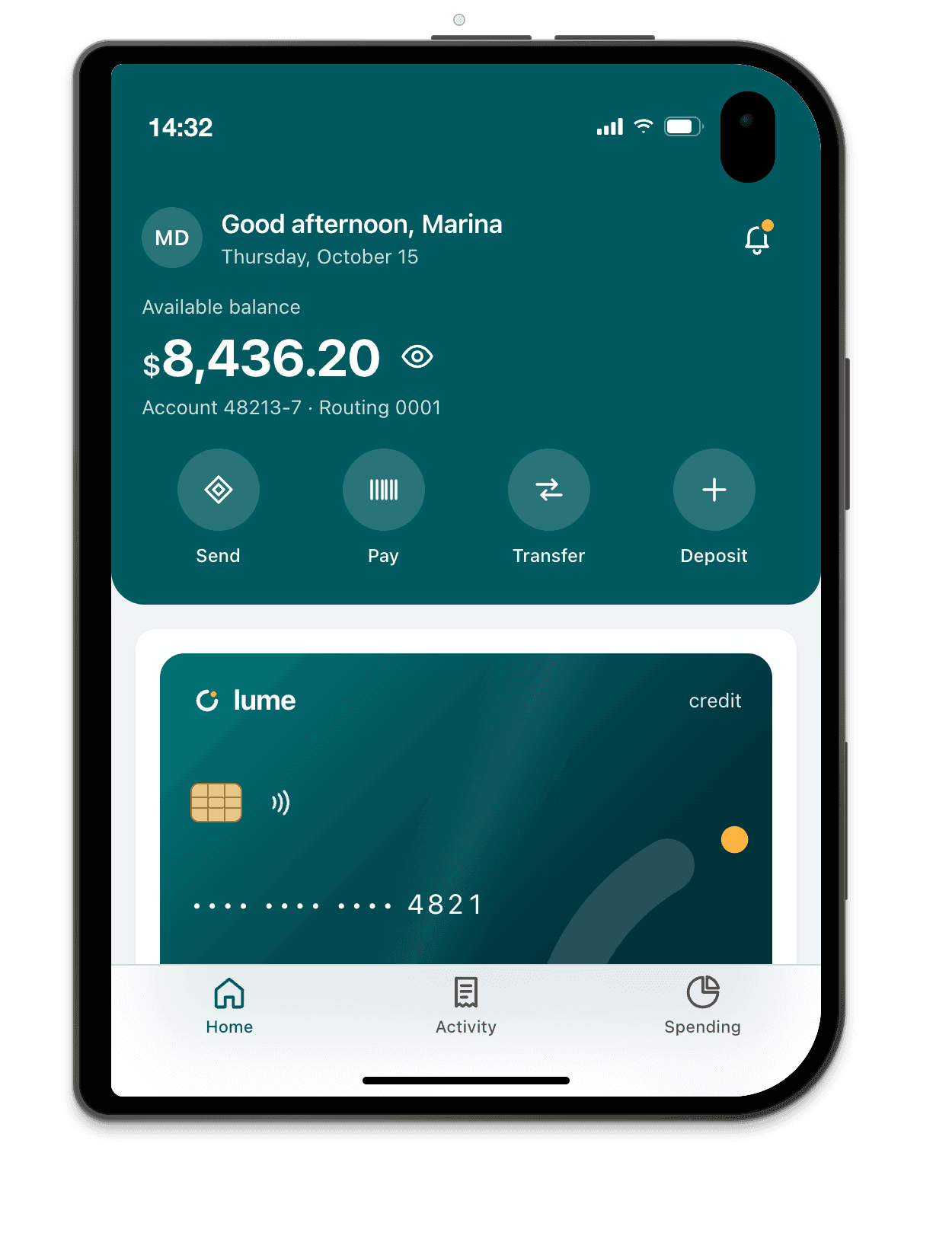
- iPhone Duo (open) · 951×669 @3x
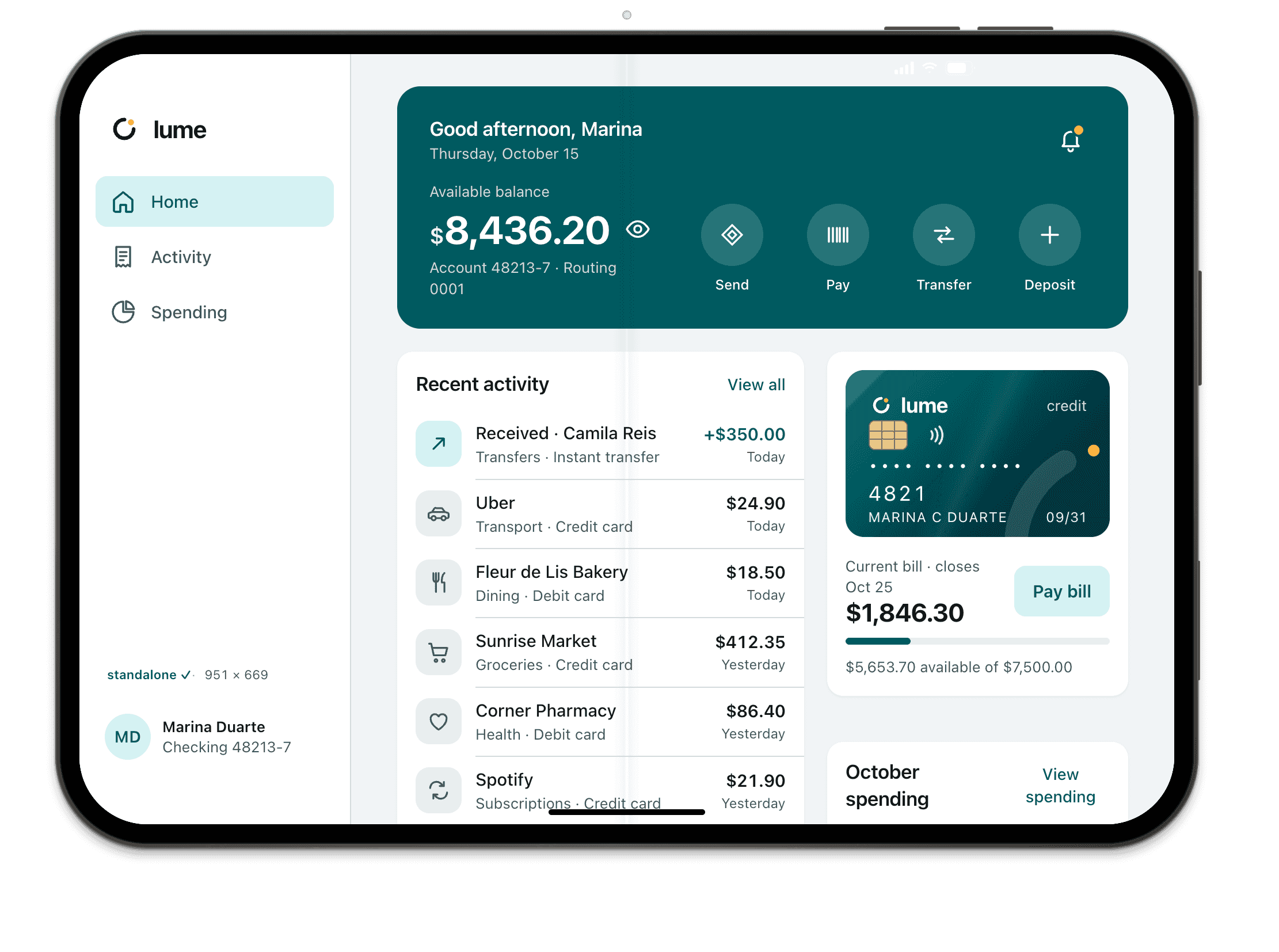
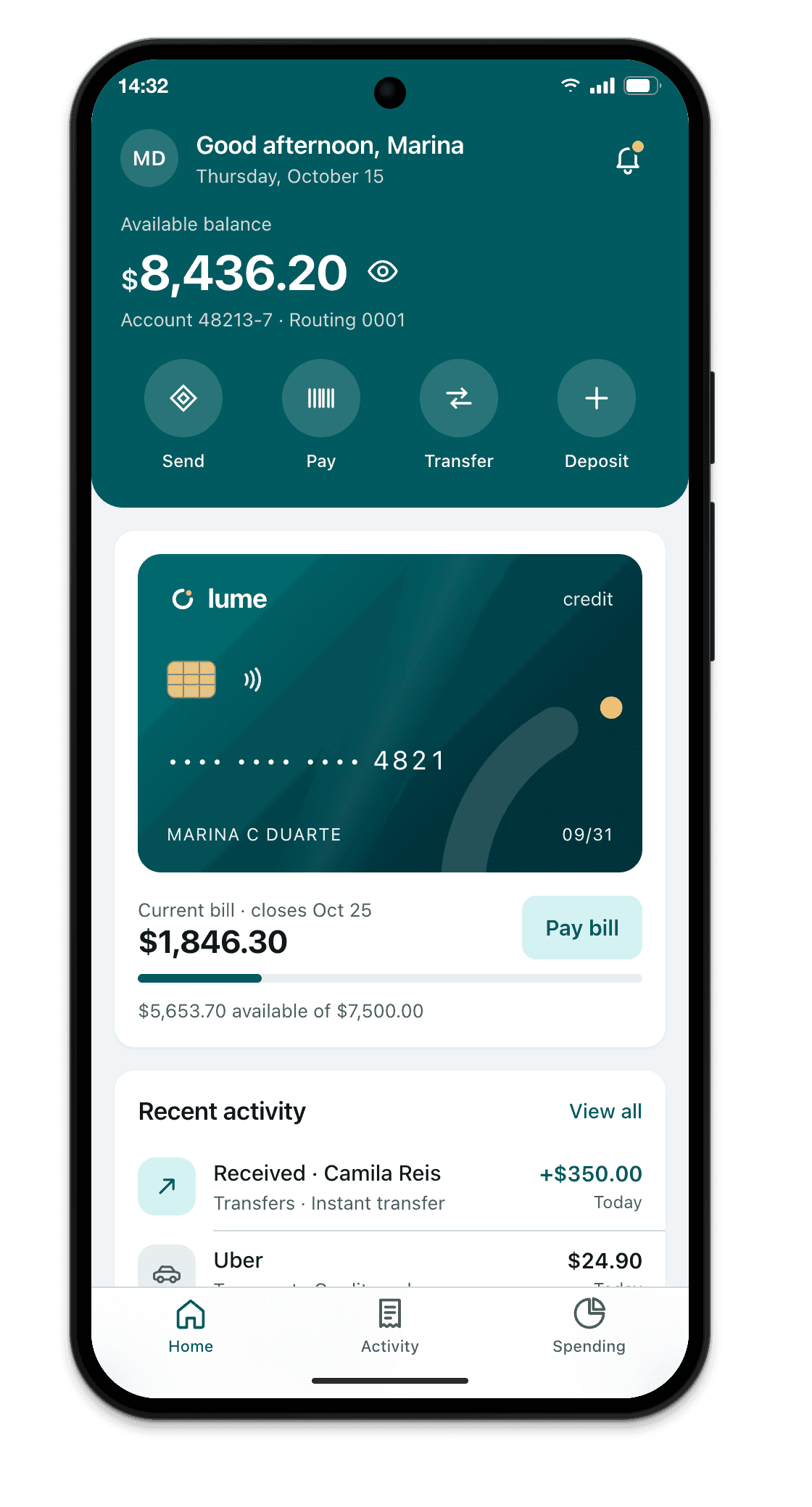
- Pixel 9 · 412×923 @2.625x
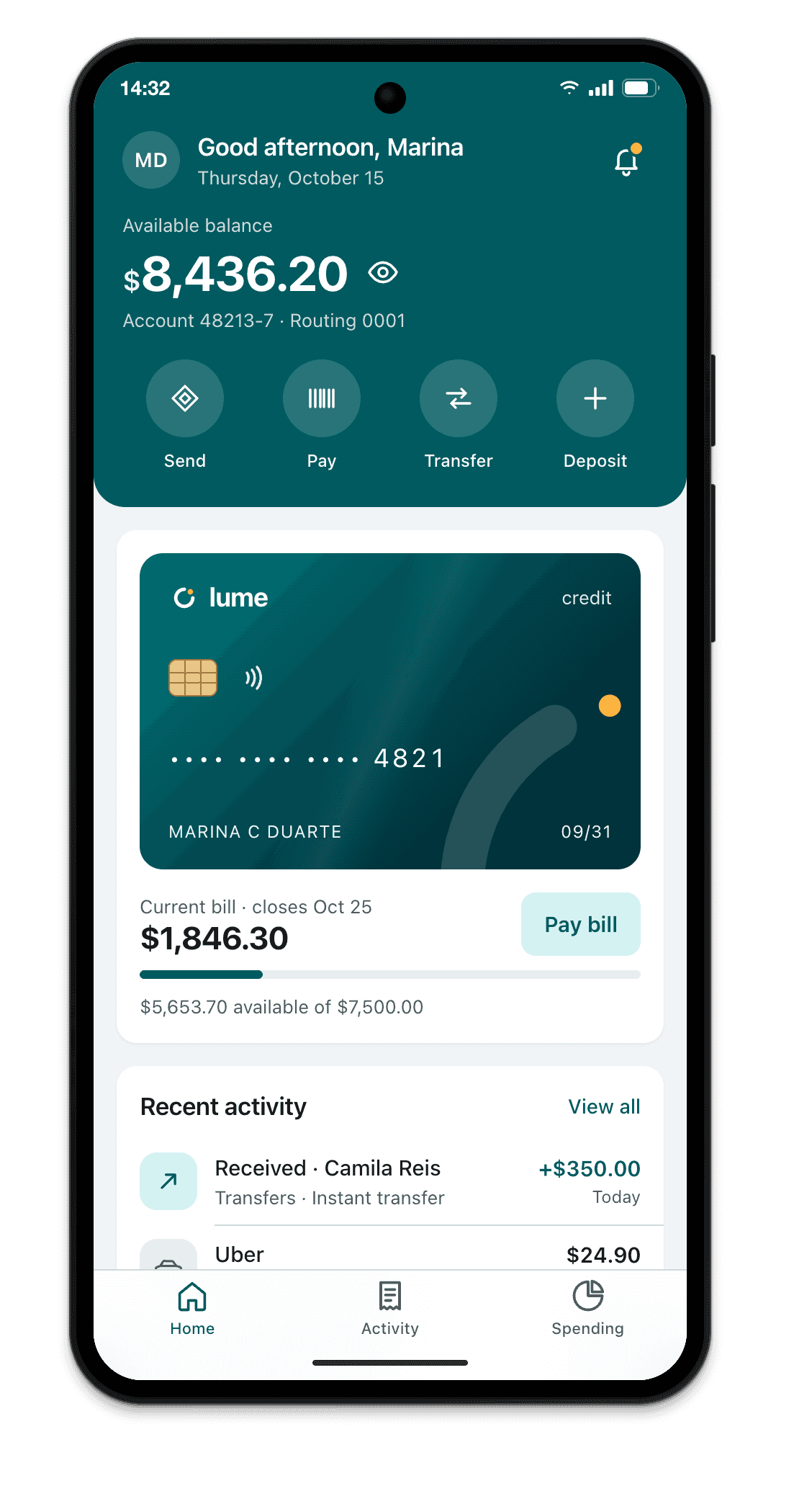
- Pixel 8a · 412×915 @2.625x
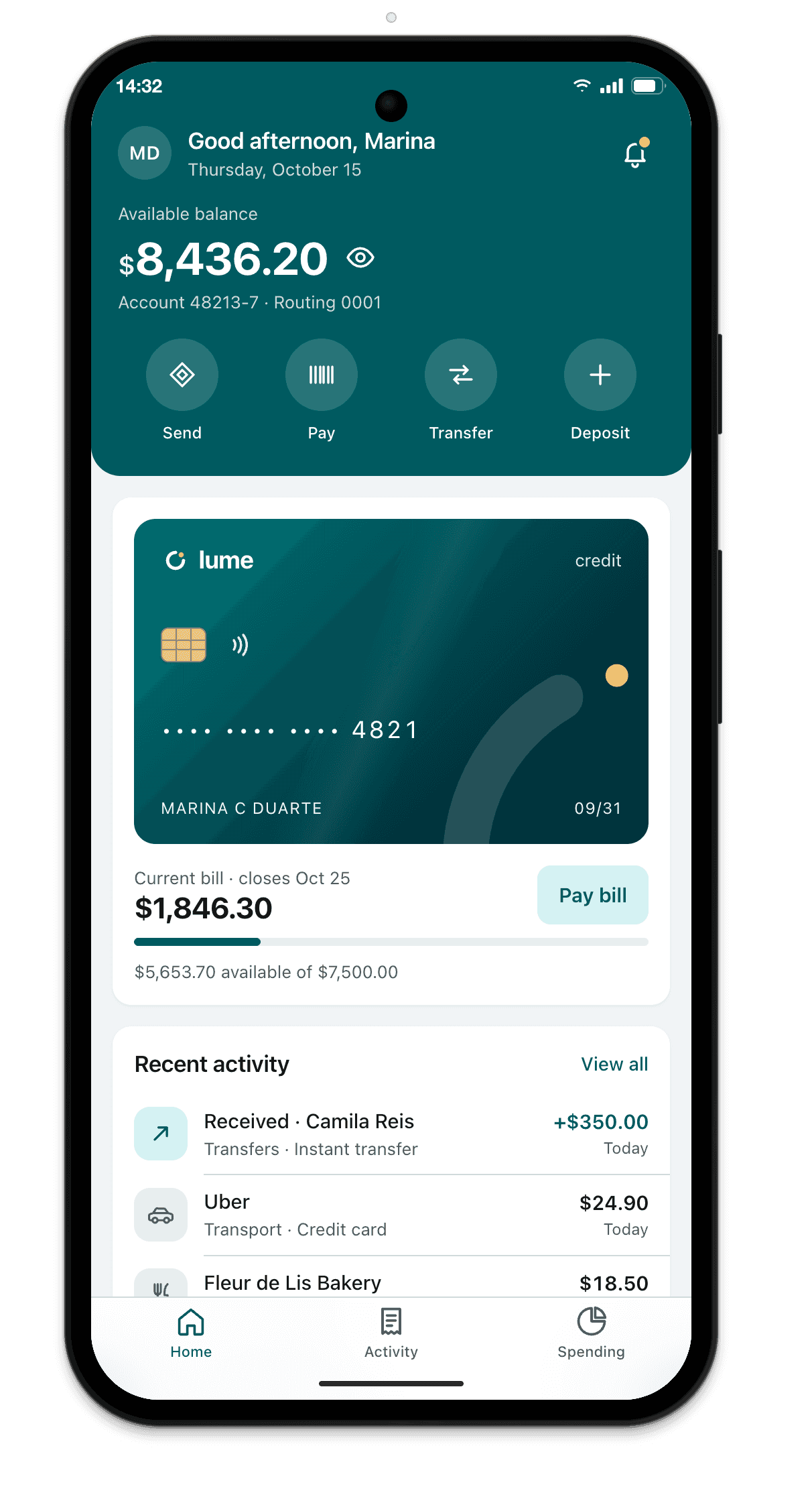
- Pixel 10 Pro XL · 448×998 @3x
- Pixel 10 Pro Fold (open) · 755×783 @2.75x
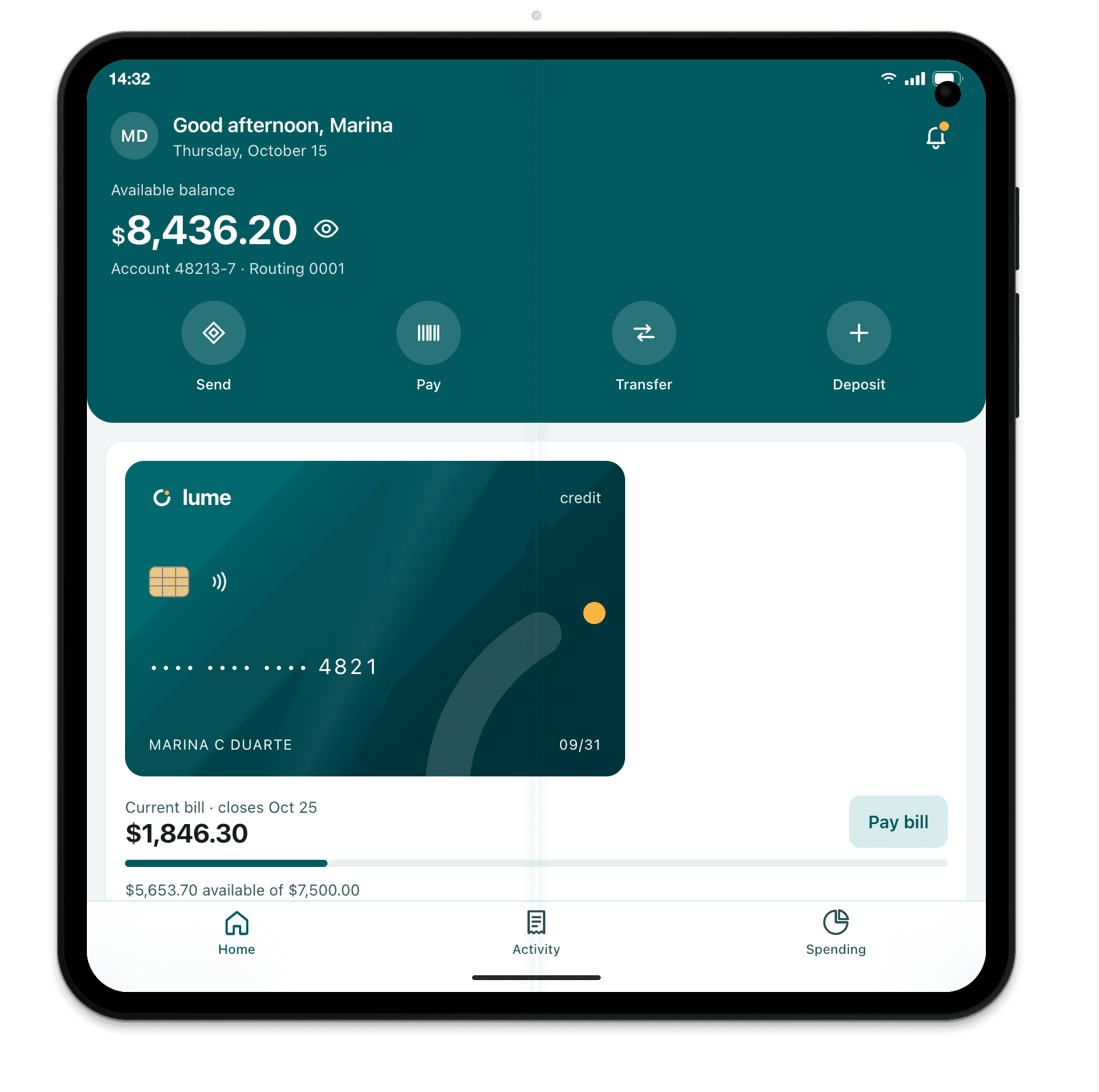
- Galaxy S25 · 360×780 @3x
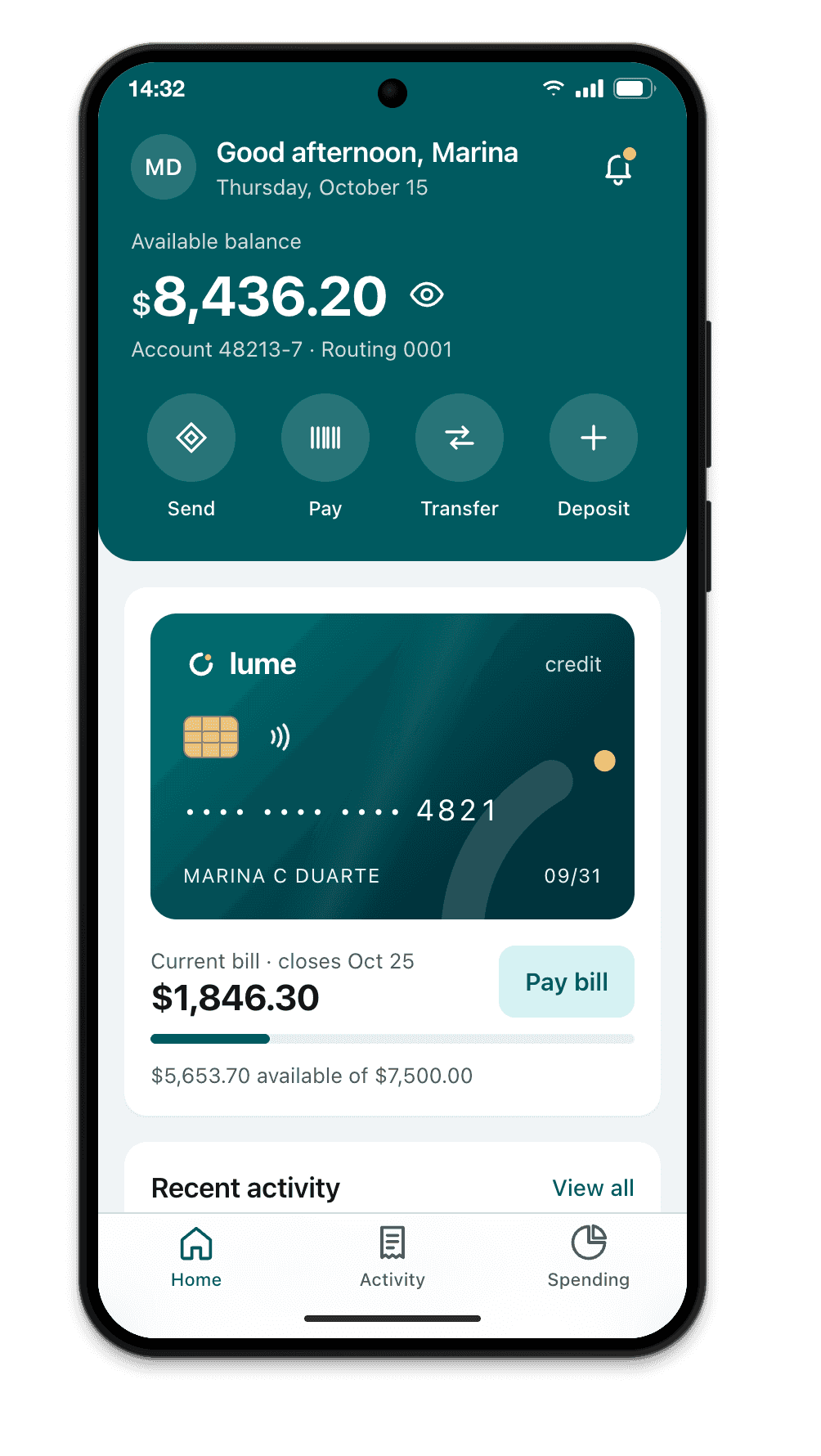
- Galaxy S24 · 360×780 @3x
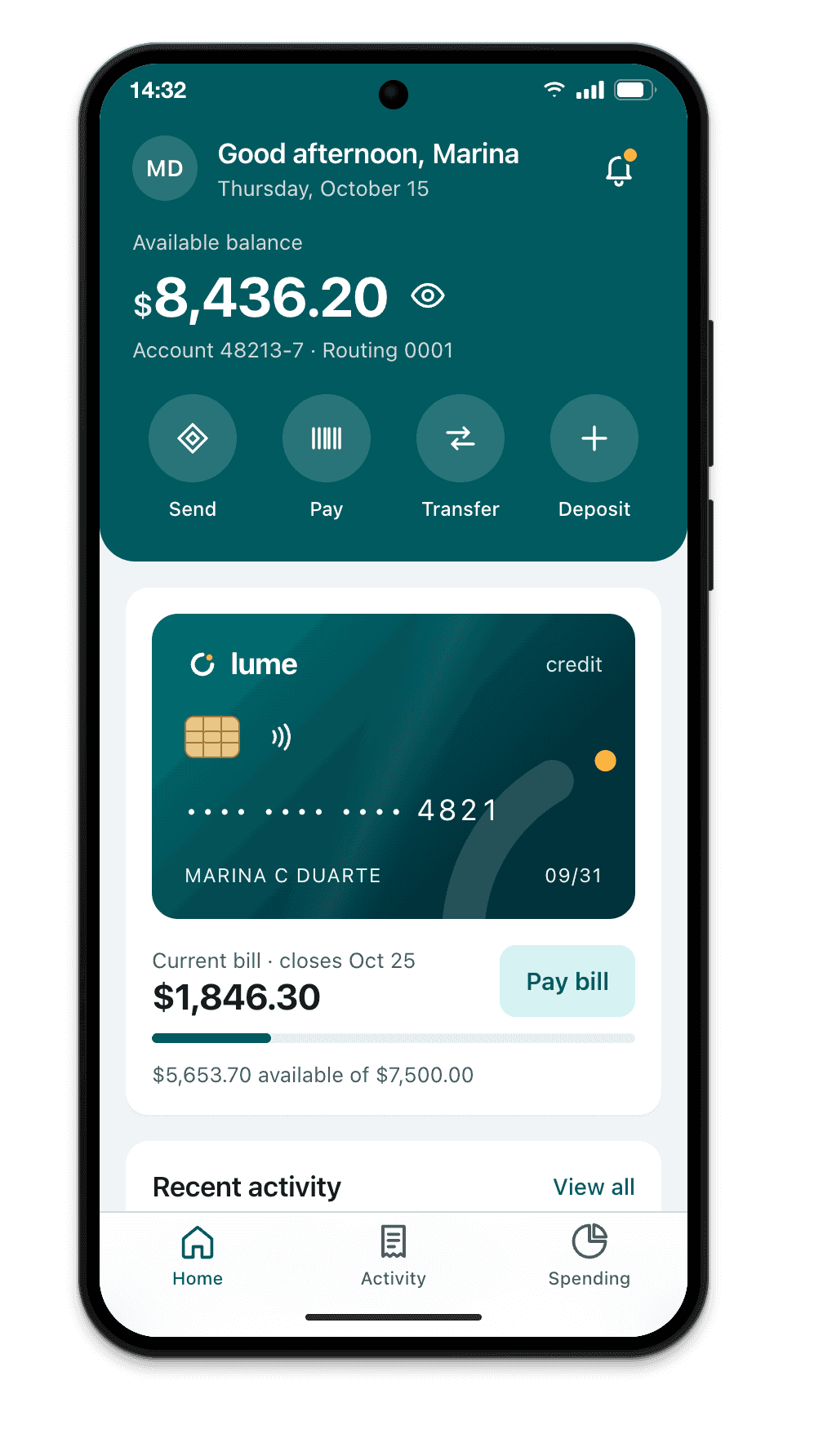
- Galaxy S25 Ultra · 384×832 @2.813x
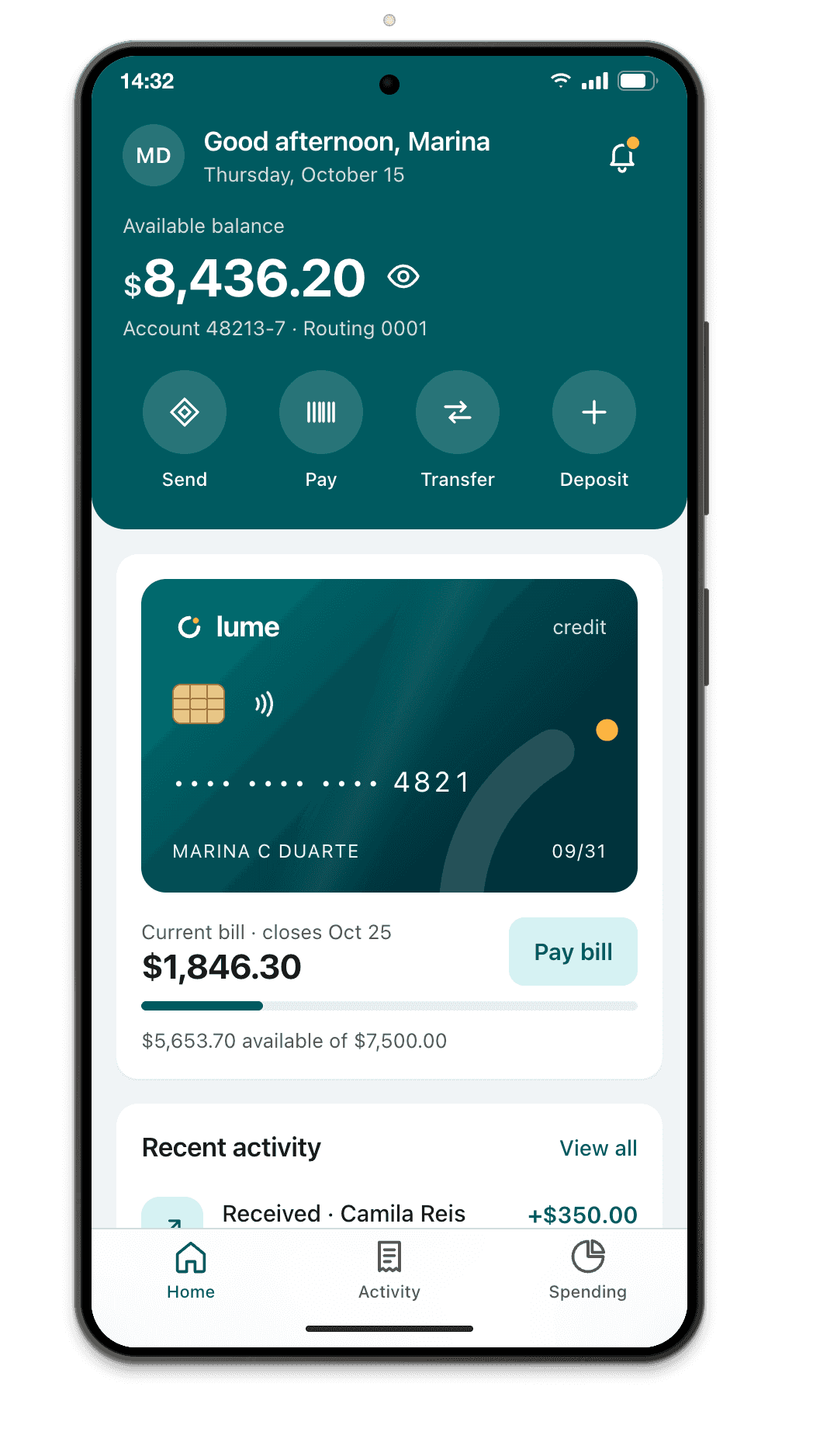
- Galaxy Z Fold7 (open) · 750×832 @2.625x
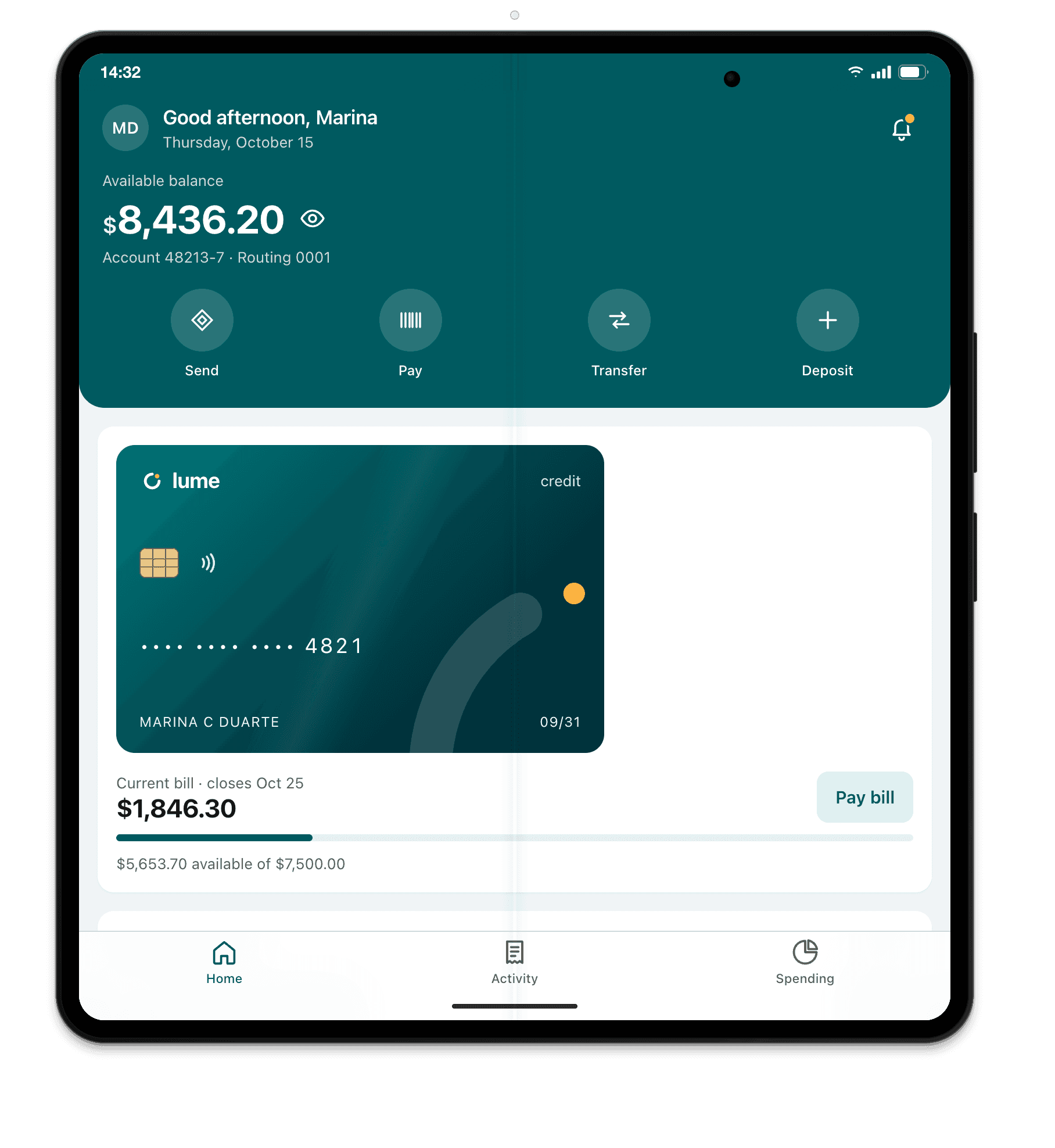
- Galaxy Z Fold7 (closed) · 412×960 @2.625x
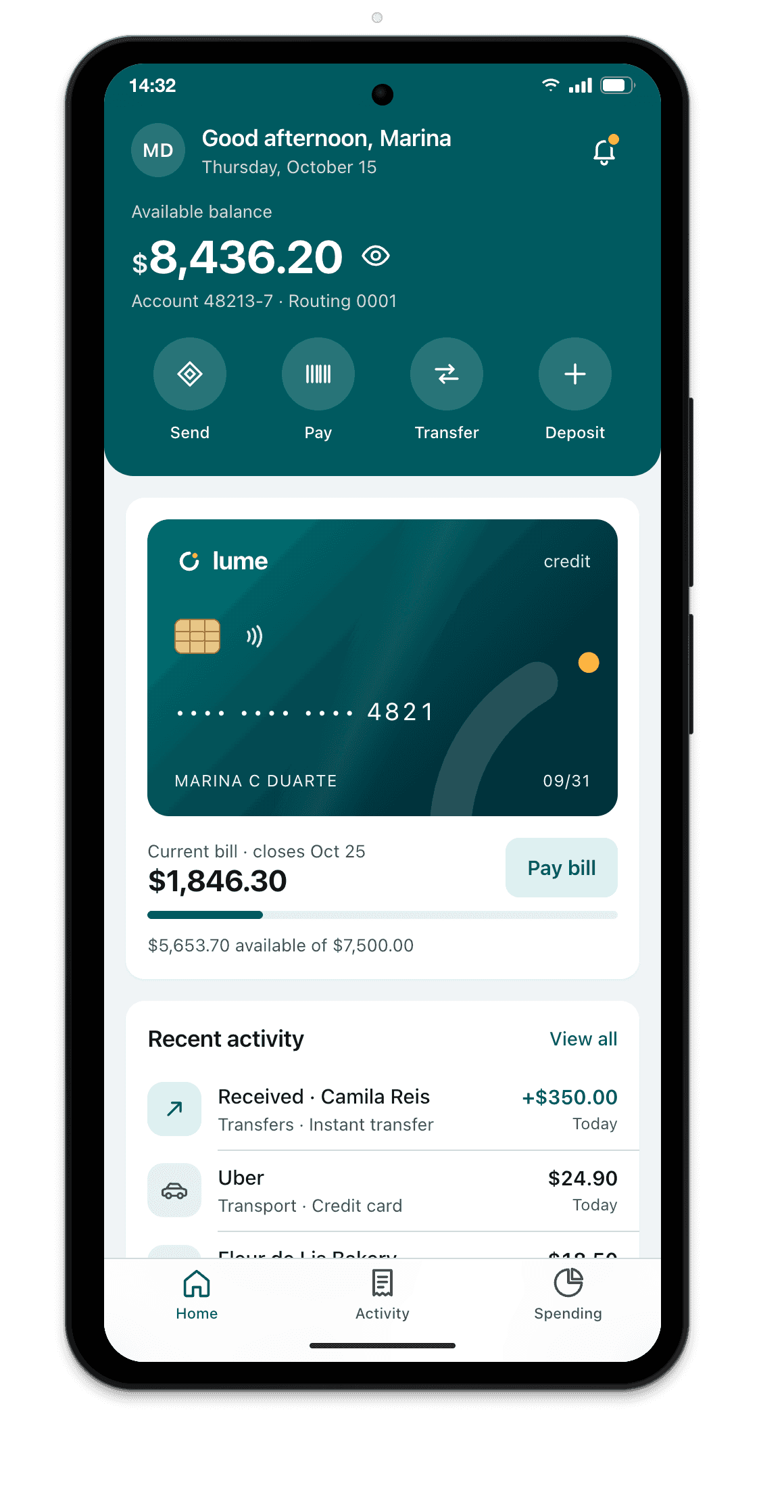
- Galaxy Z Fold5 (open) · 690×829 @2.625x
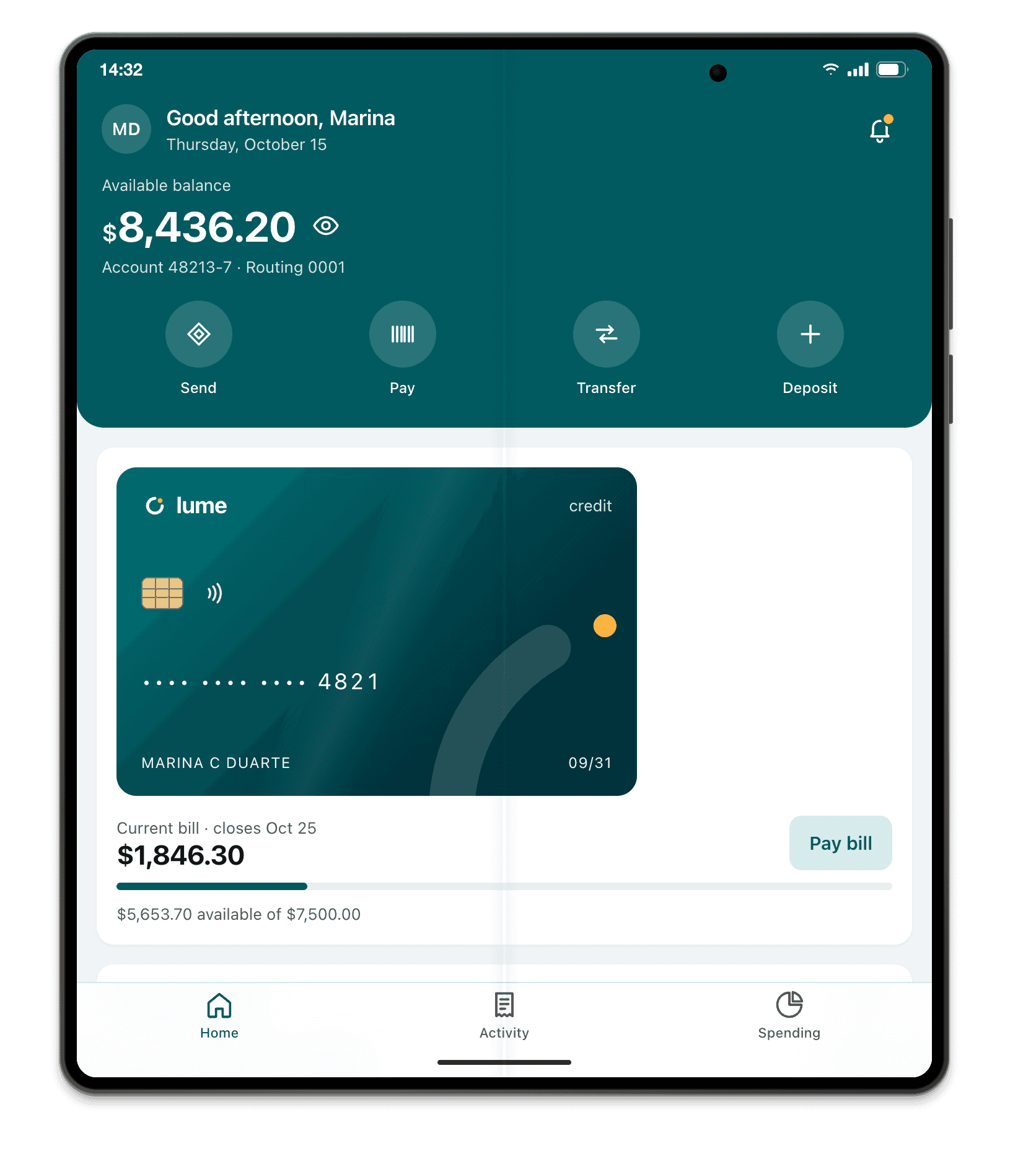
- Galaxy Z Fold5 (closed) · 344×882 @2.625x
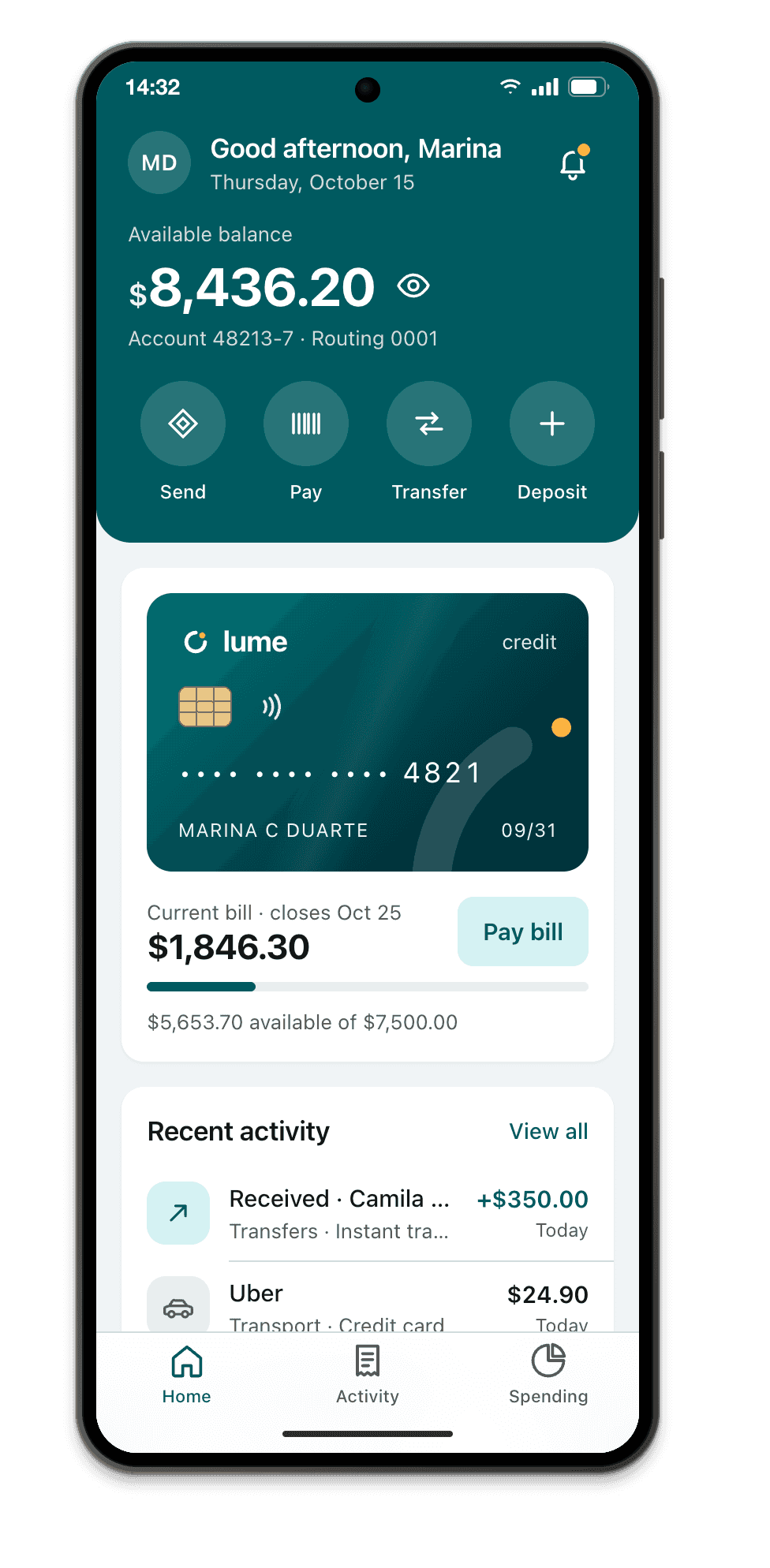
- Galaxy Z Flip7 · 360×840 @3x
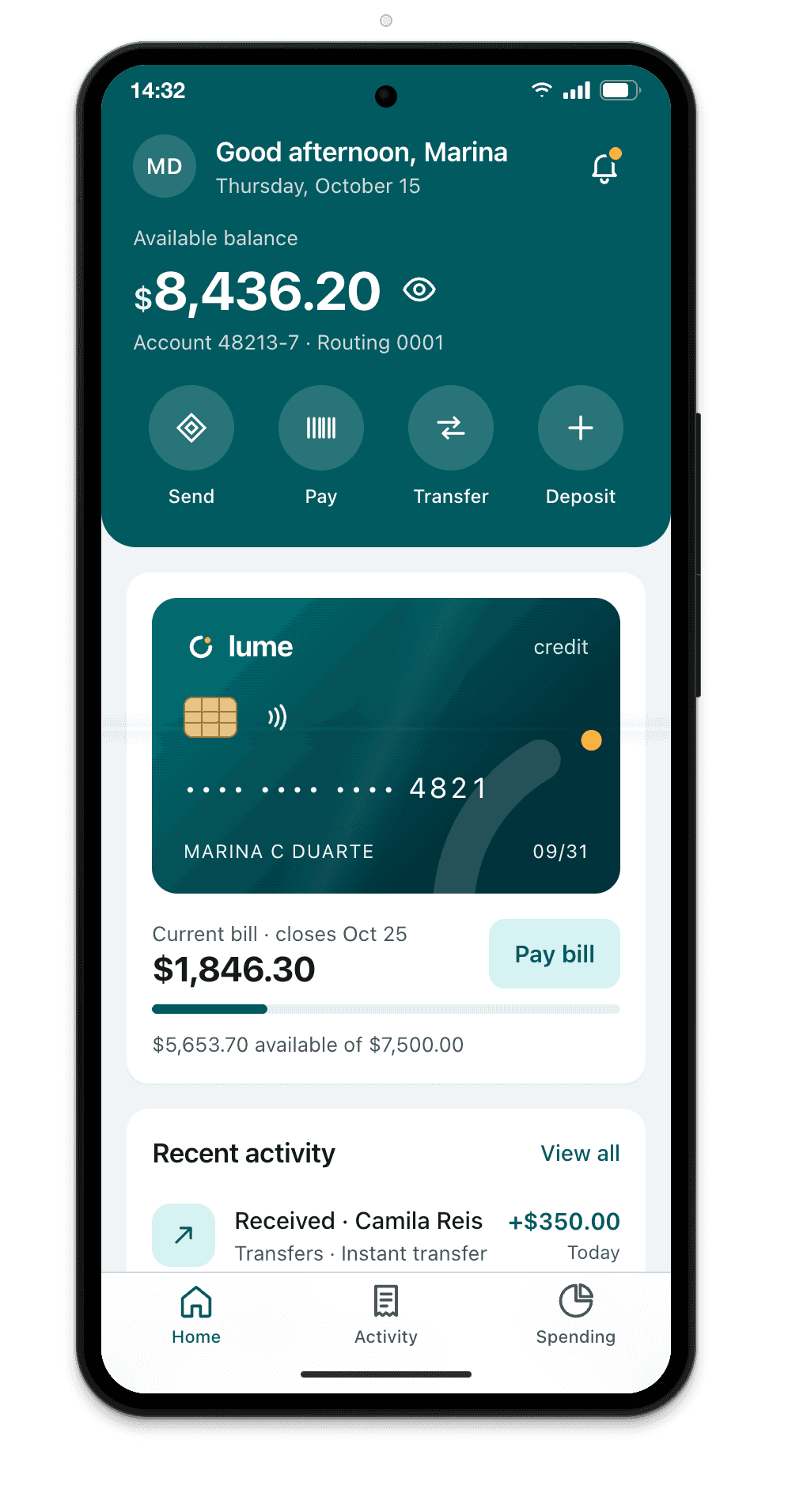
- Galaxy Z Flip3 · 360×880 @3x
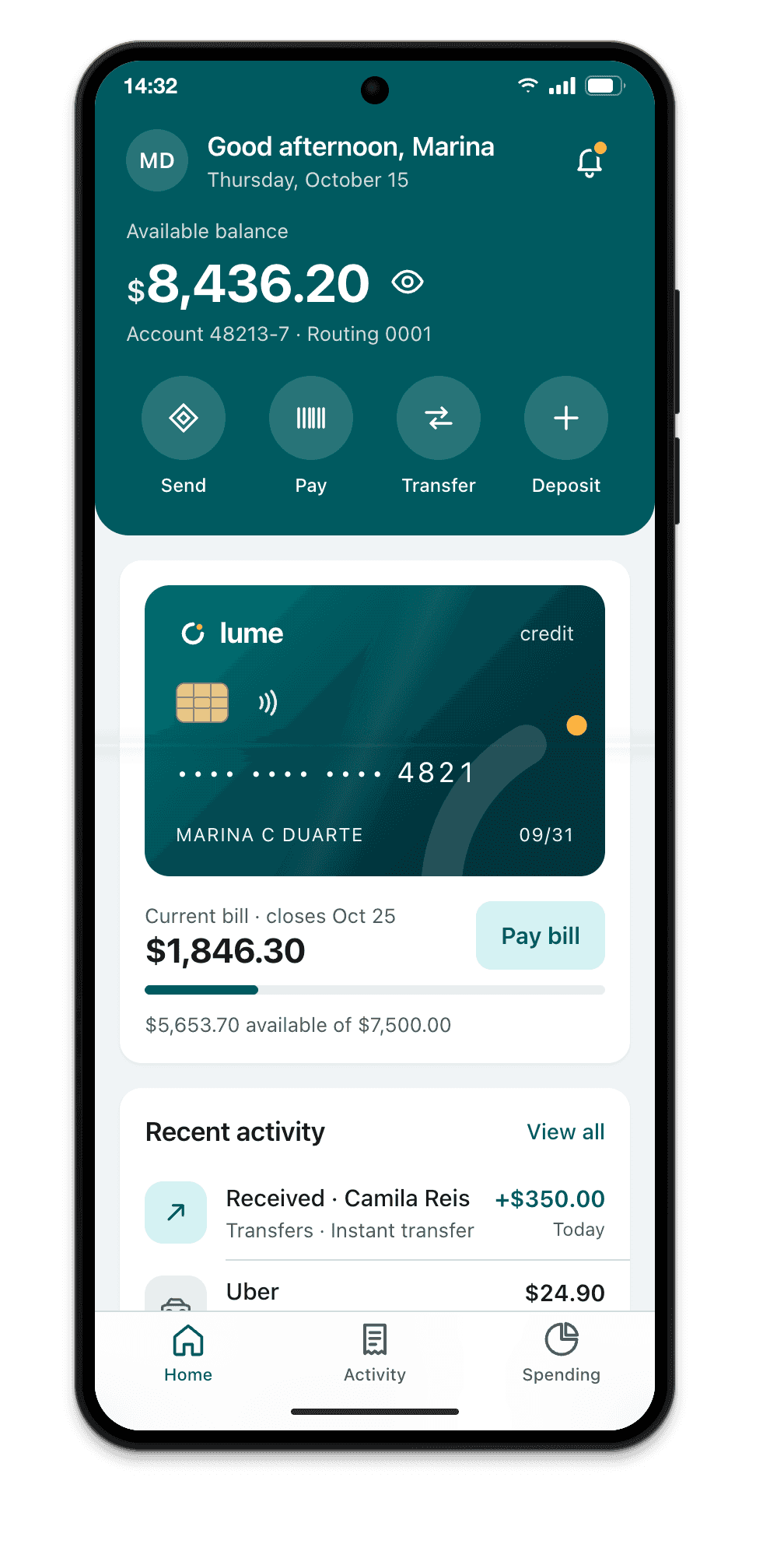
- Galaxy A06 · 360×800 @2x
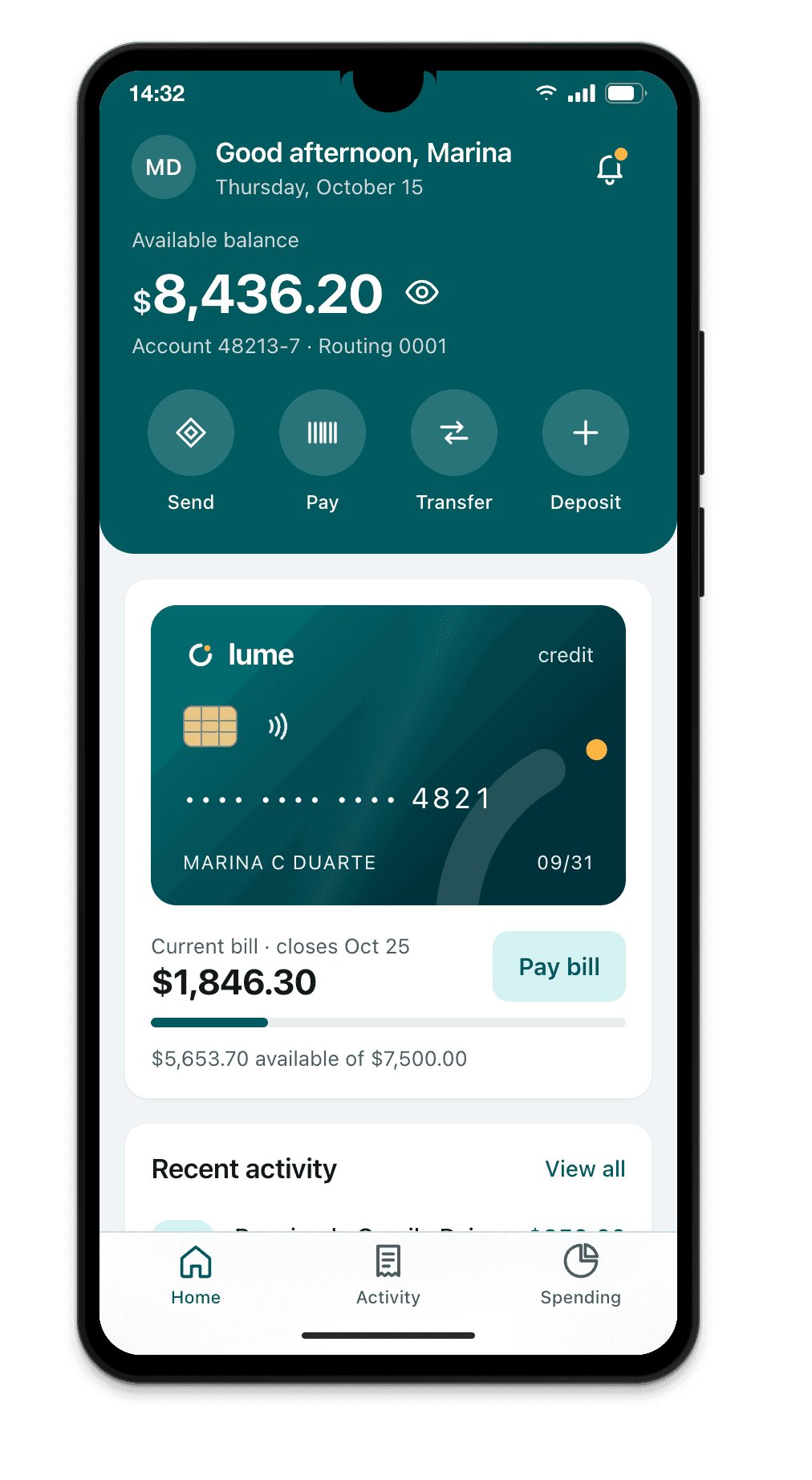
- Moto G (2025) · 412×917 @1.75x
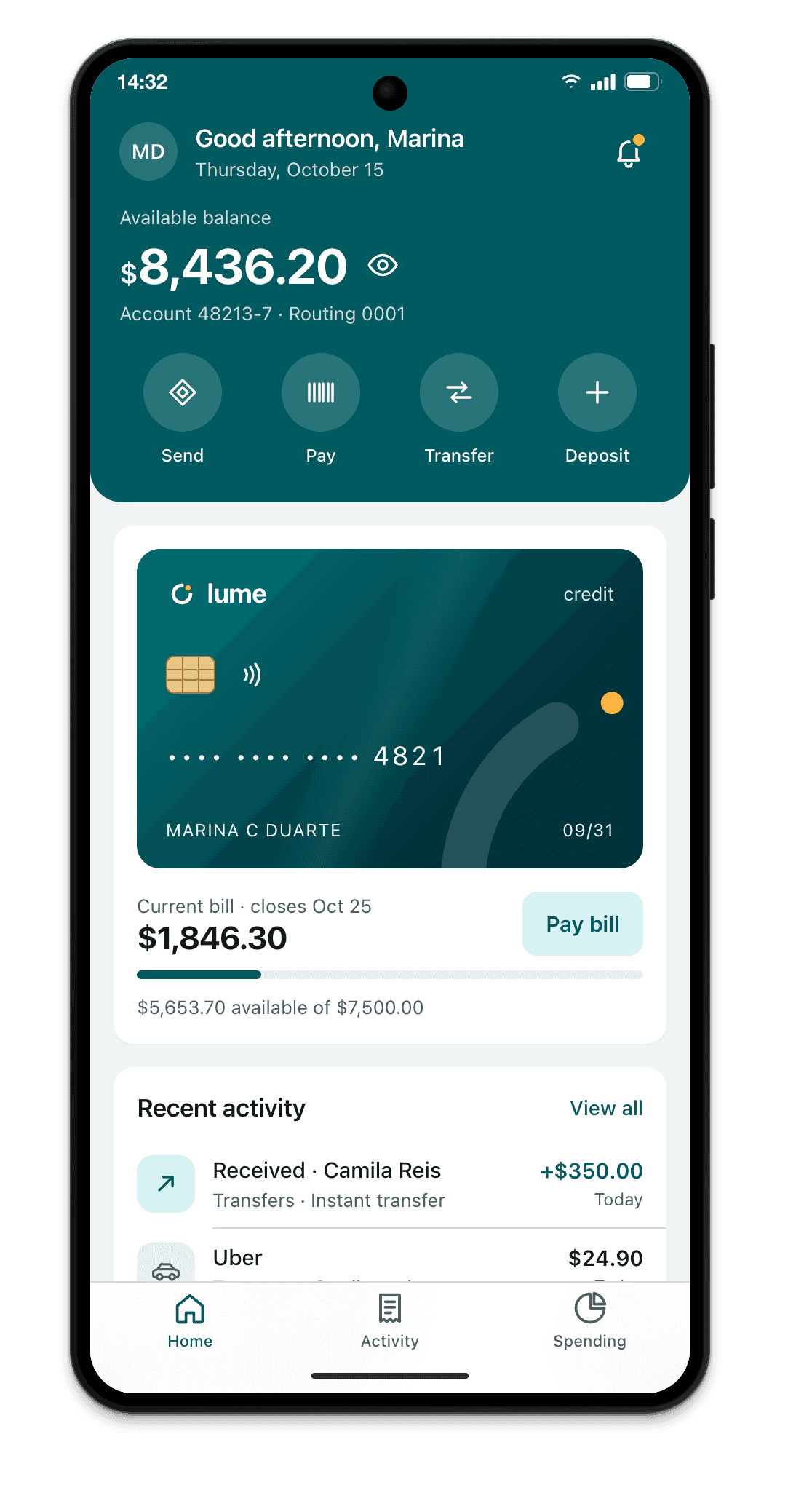
- Redmi Note 13 · 393×873 @2.75x
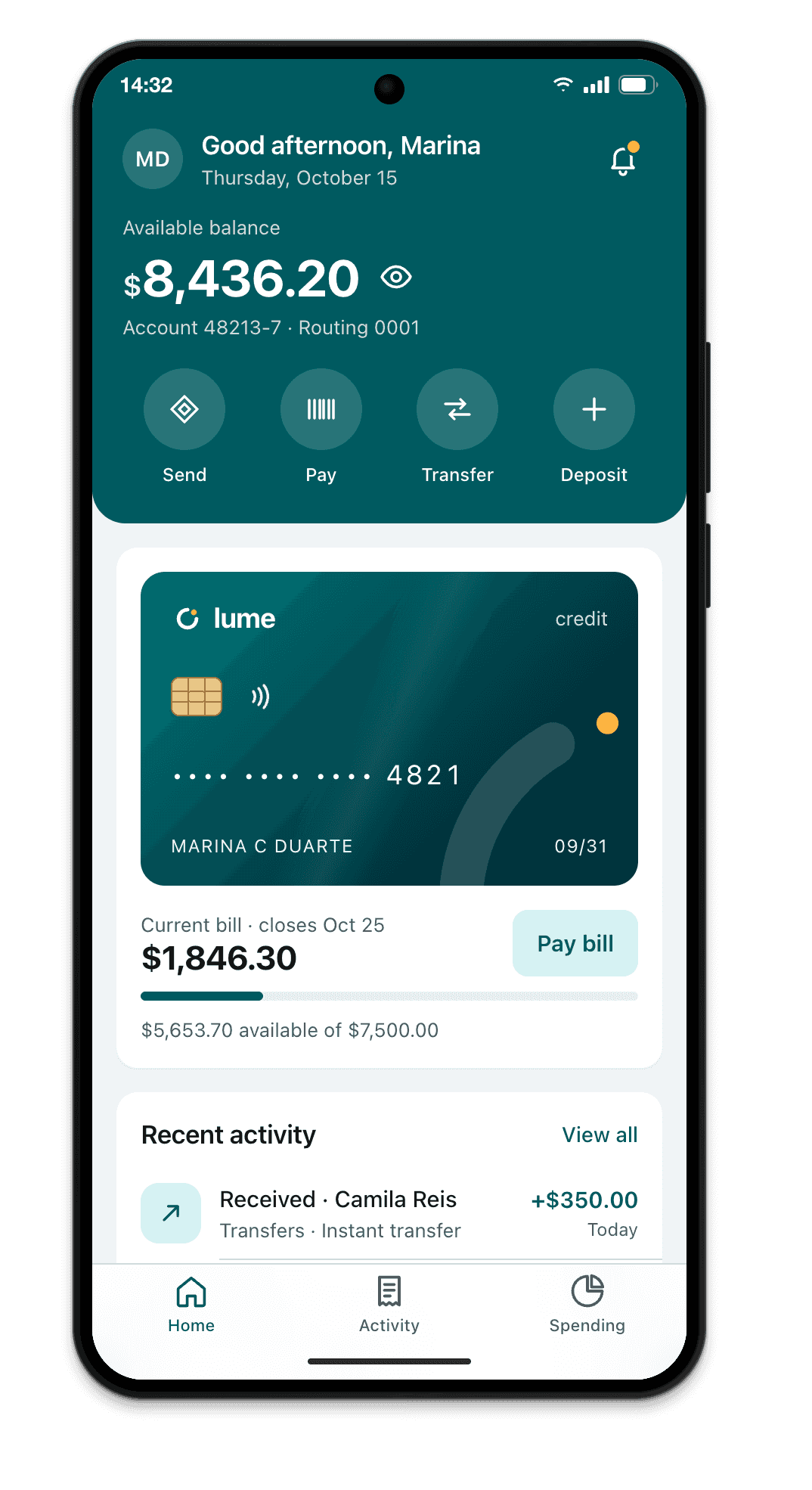
- Poco X6 Pro · 407×905 @3x
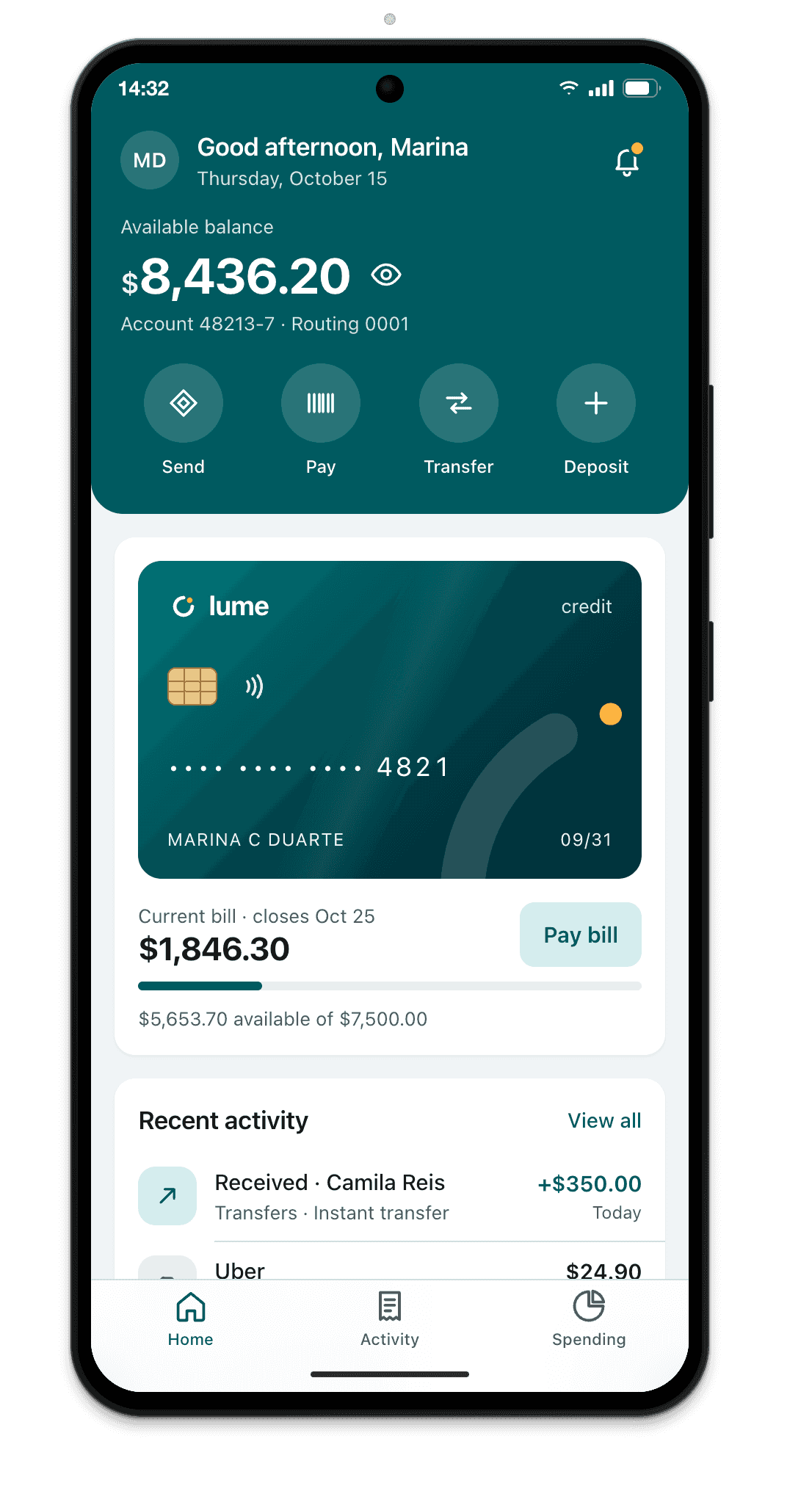
- iPad mini · 744×1133 @2x
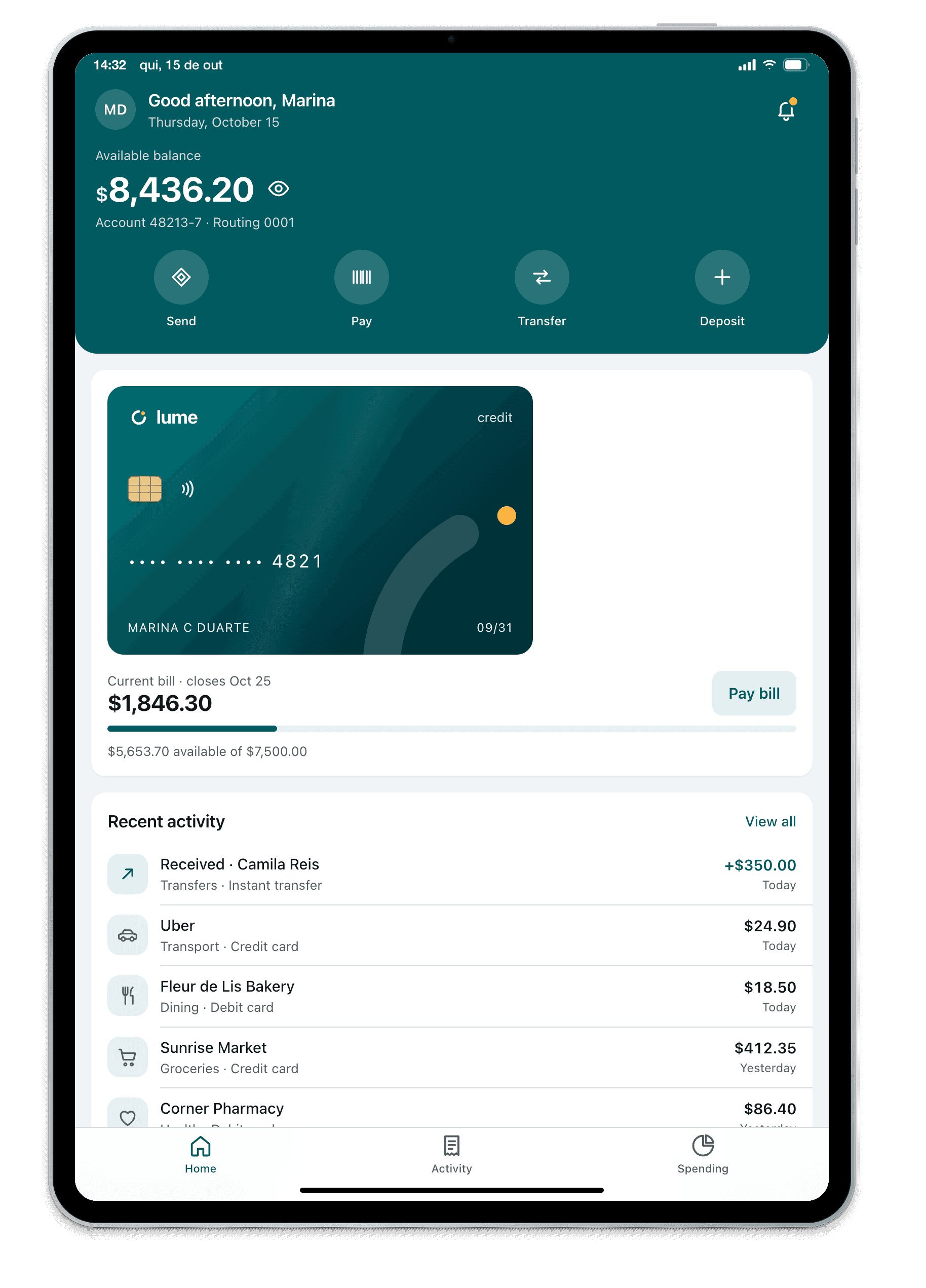
- iPad Air 11″ · 820×1180 @2x
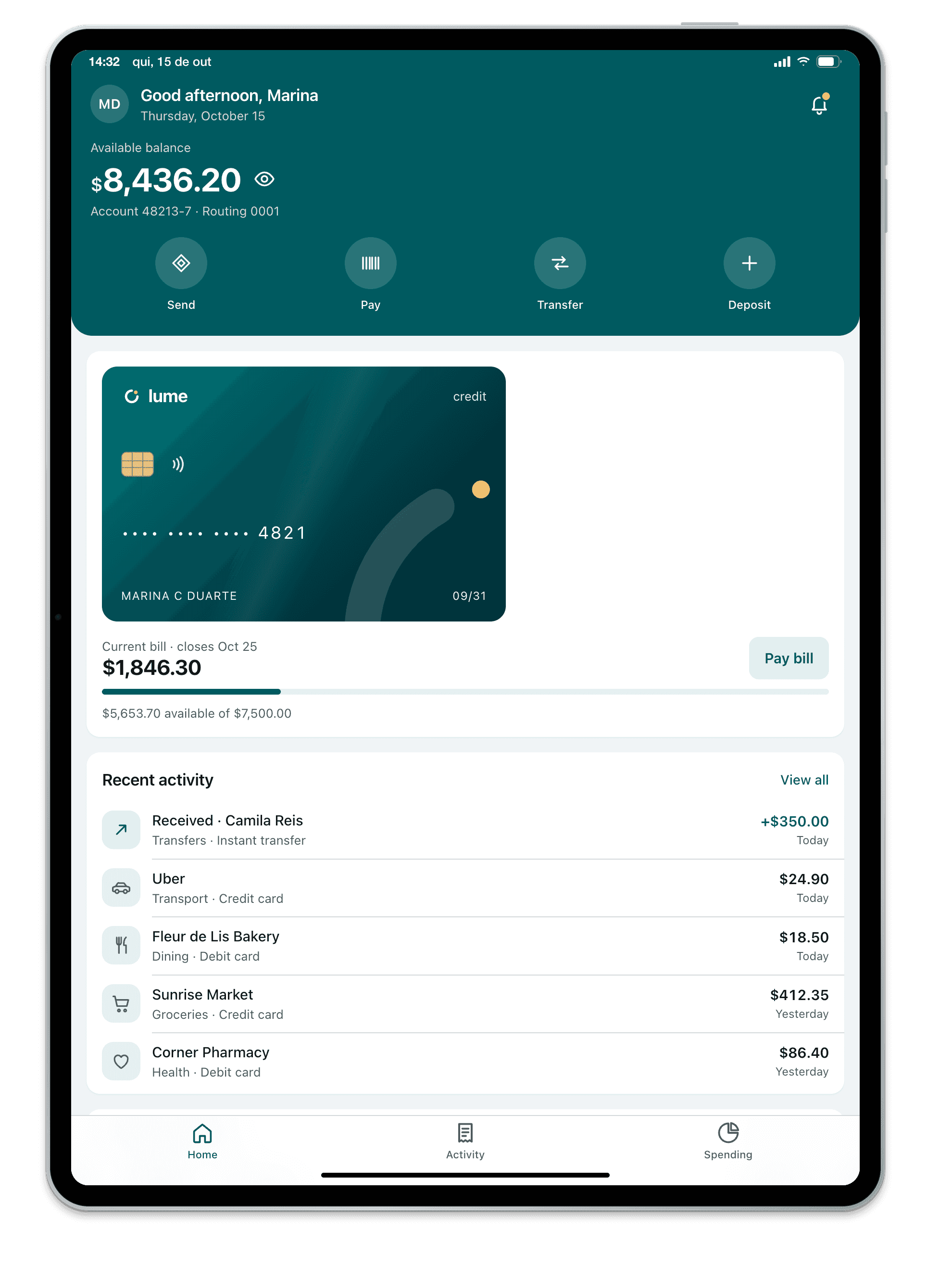
- iPad Pro 11″ · 834×1210 @2x
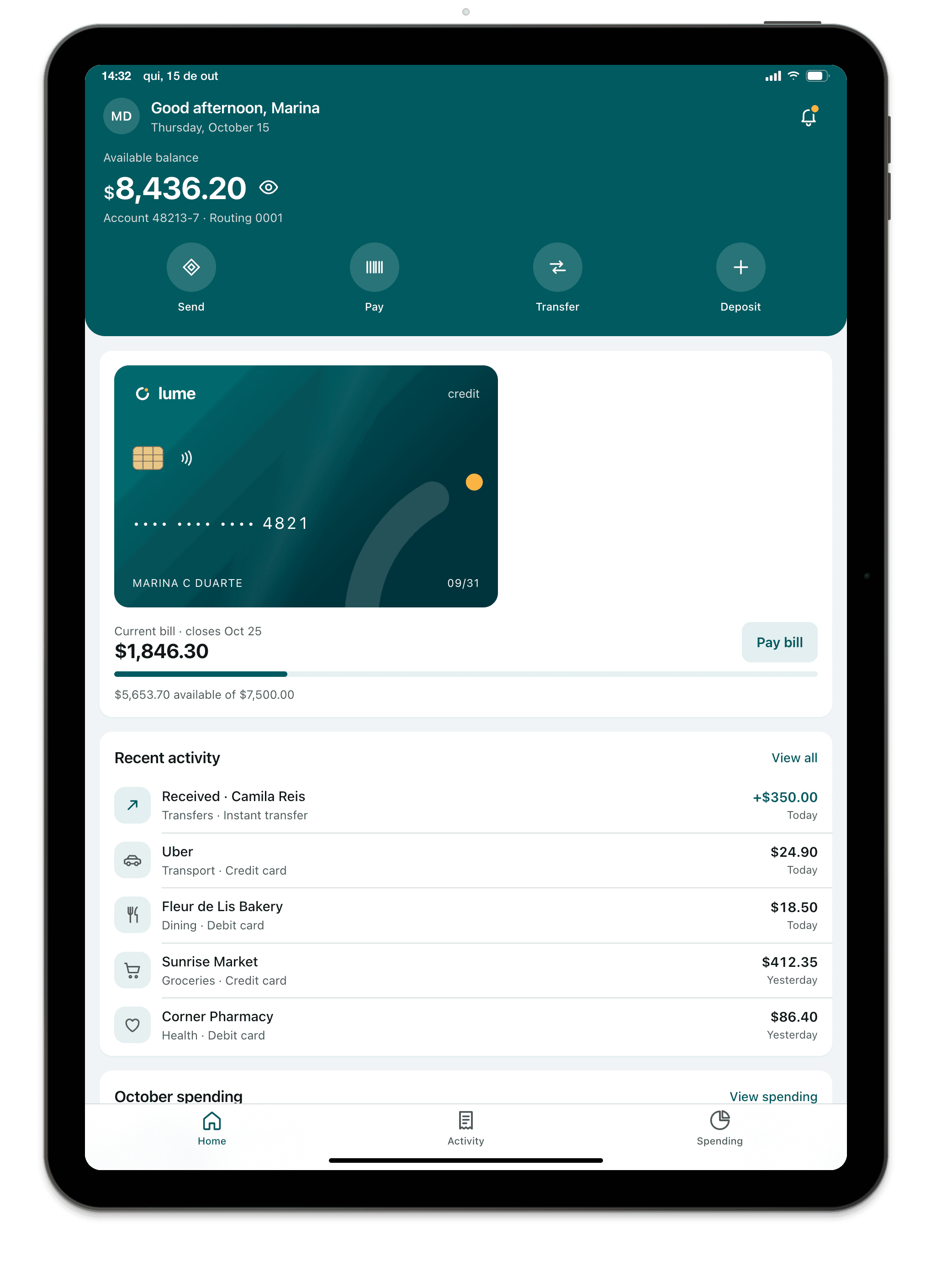
- iPad Pro 13″ · 1032×1376 @2x
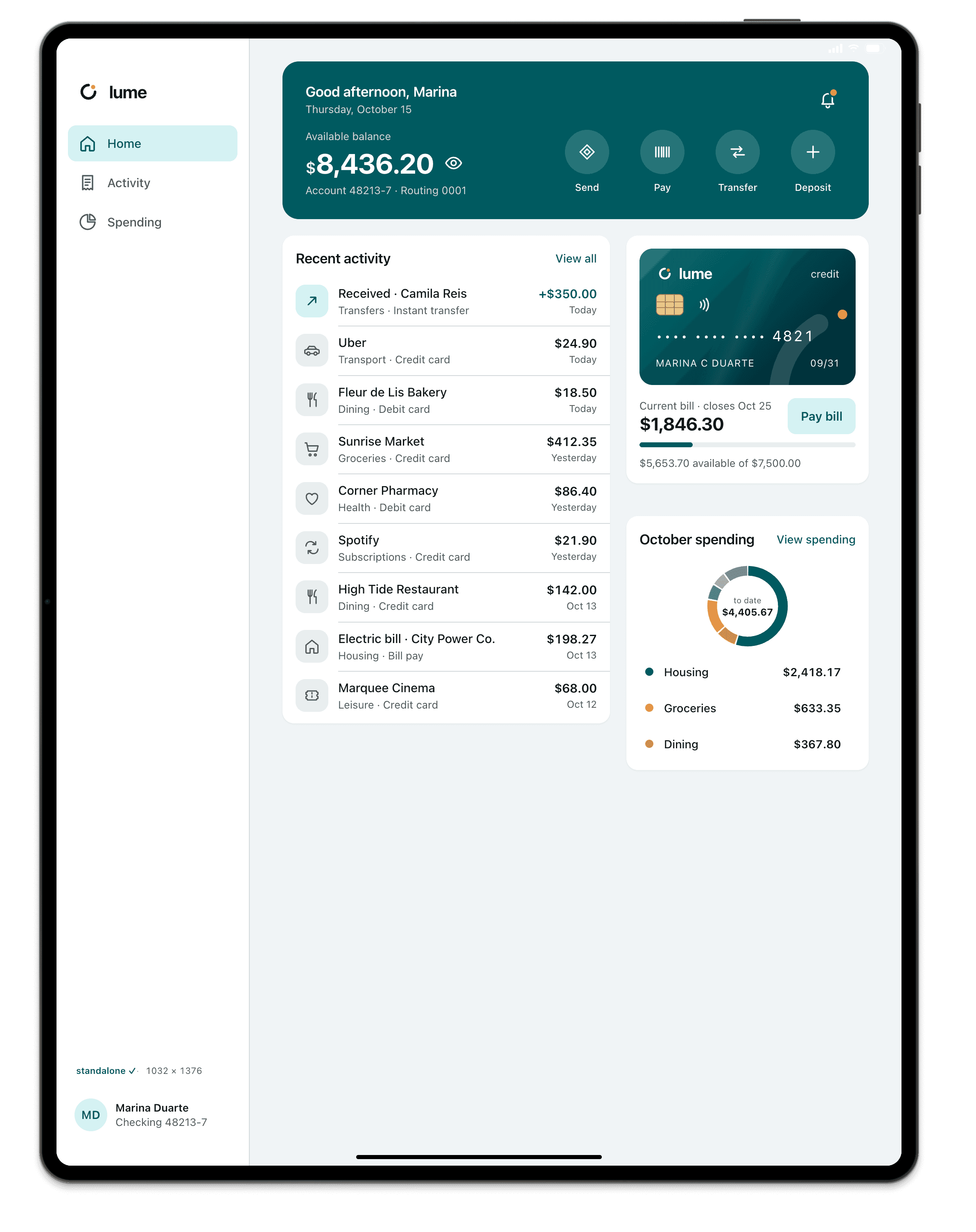
- Galaxy Tab S10+ · 876×1400 @2x
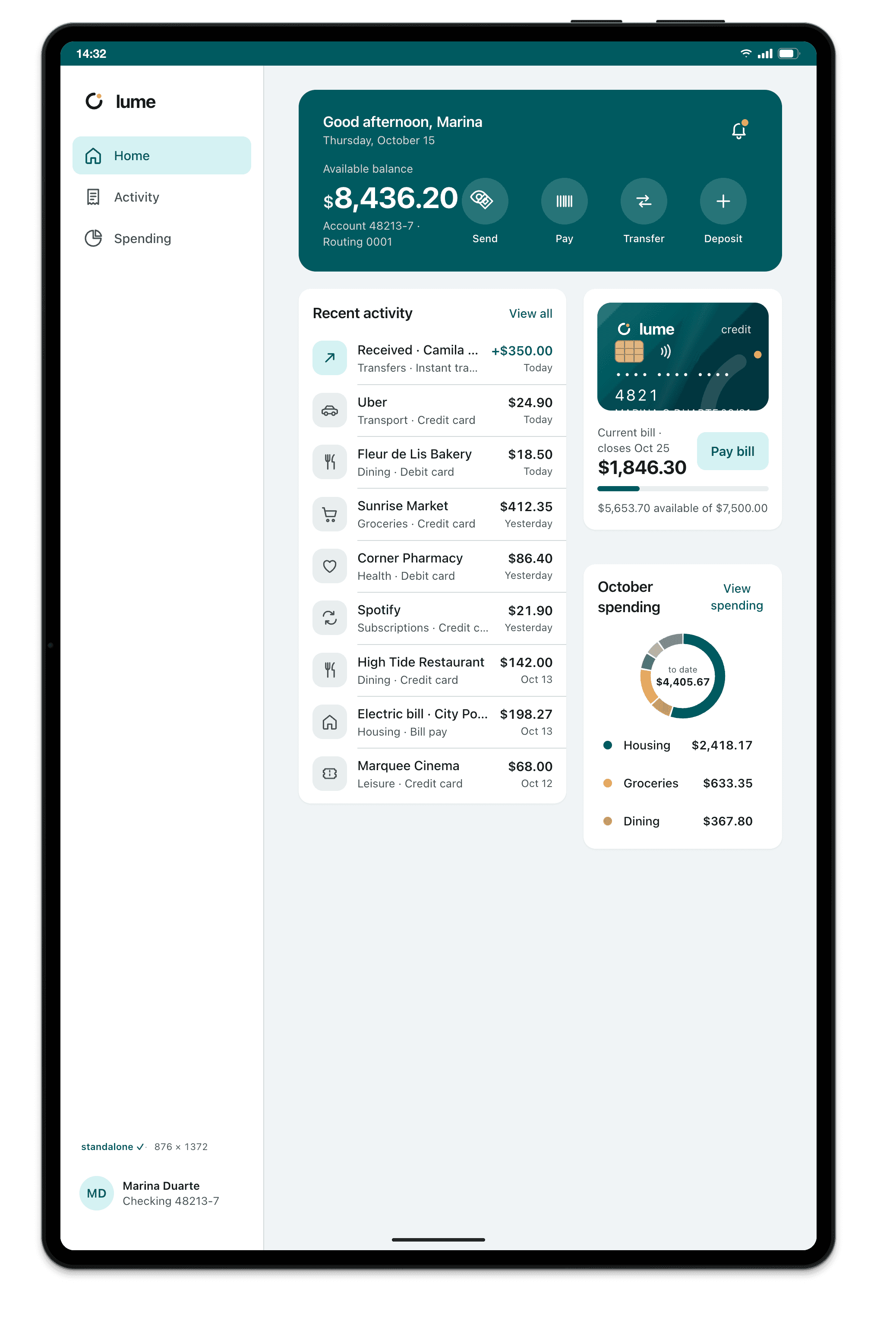
- MacBook Air 13″ · 1470×956 @2x
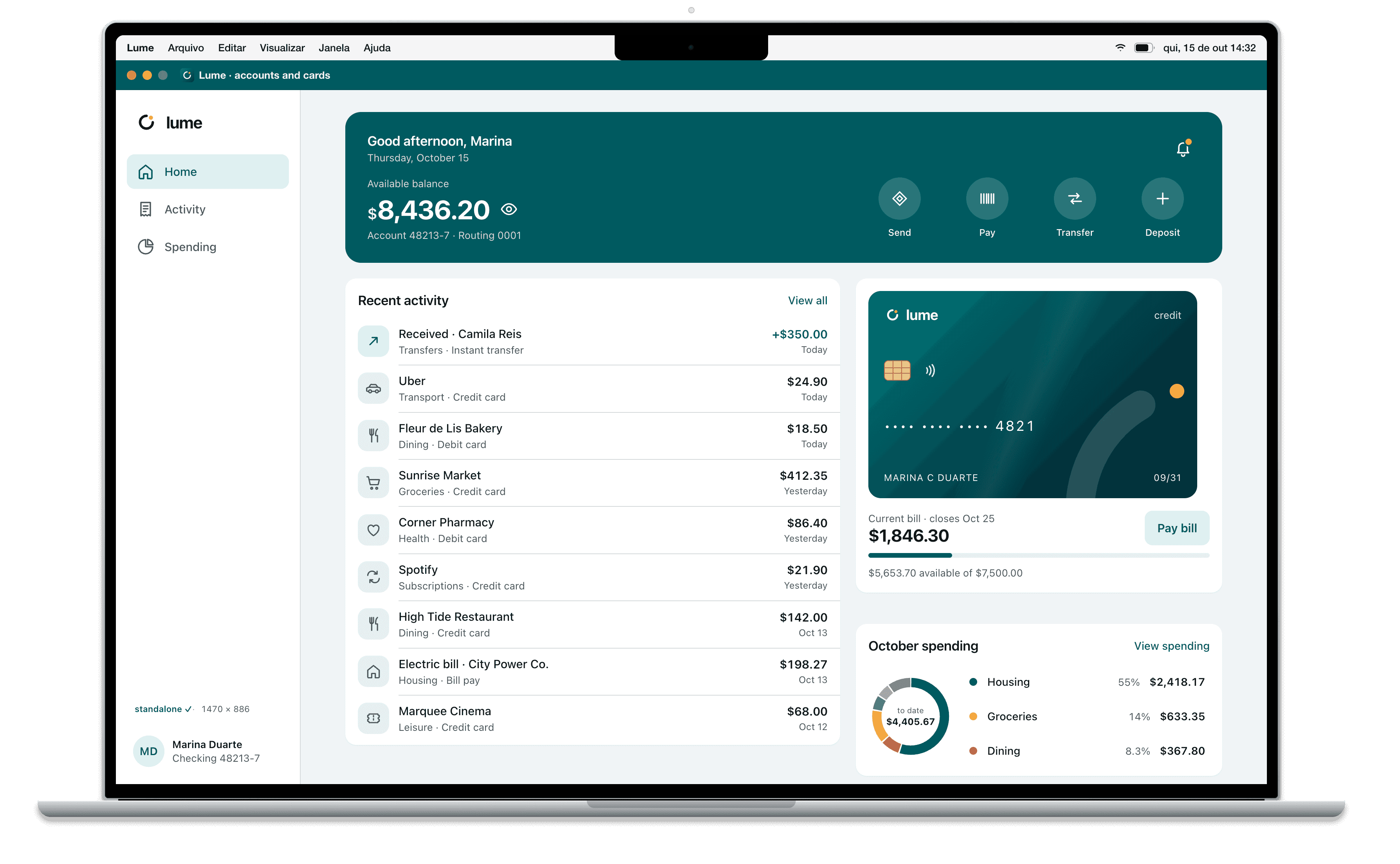
- MacBook Pro 14″ · 1512×982 @2x
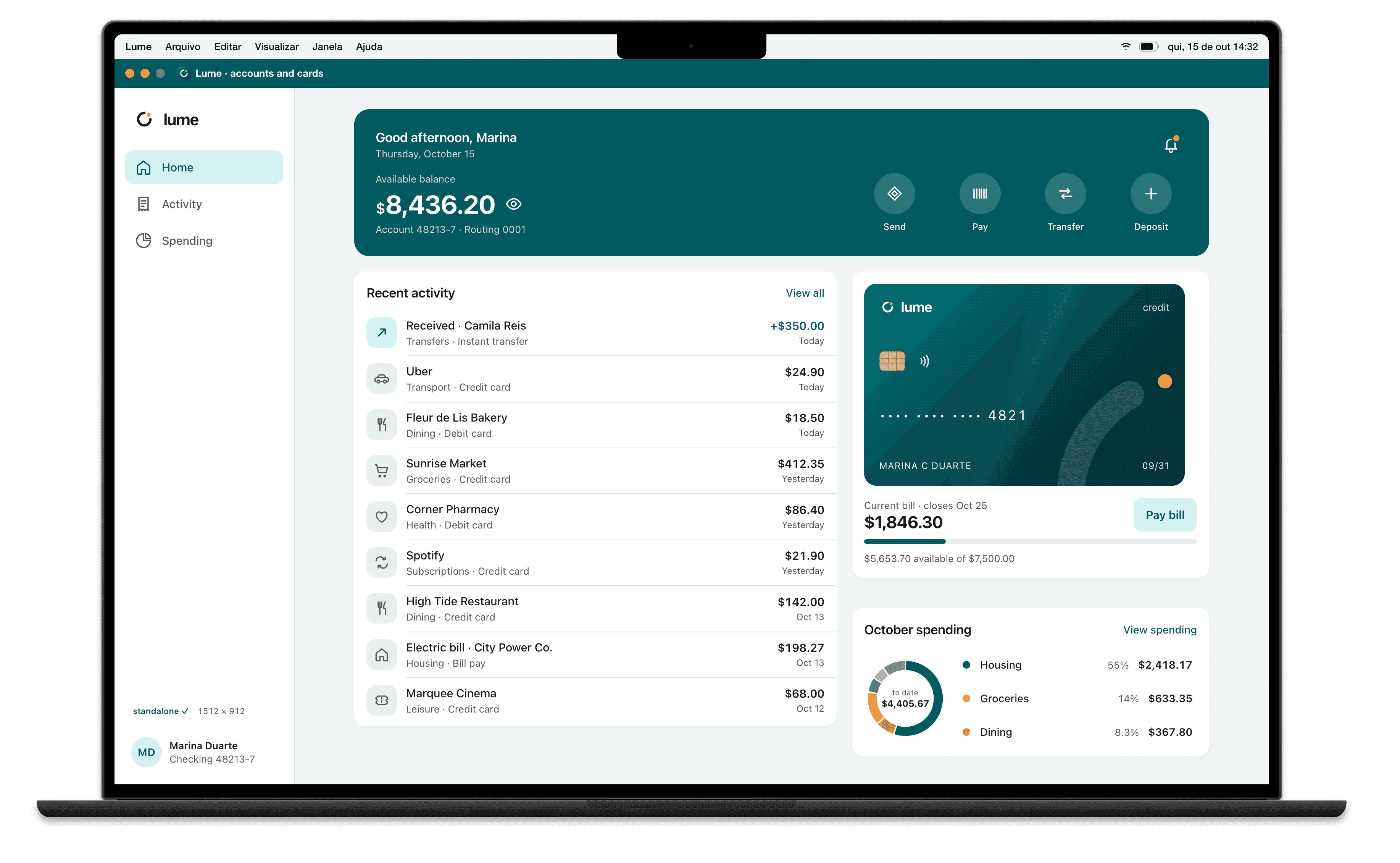
- MacBook Pro 16″ · 1728×1117 @2x
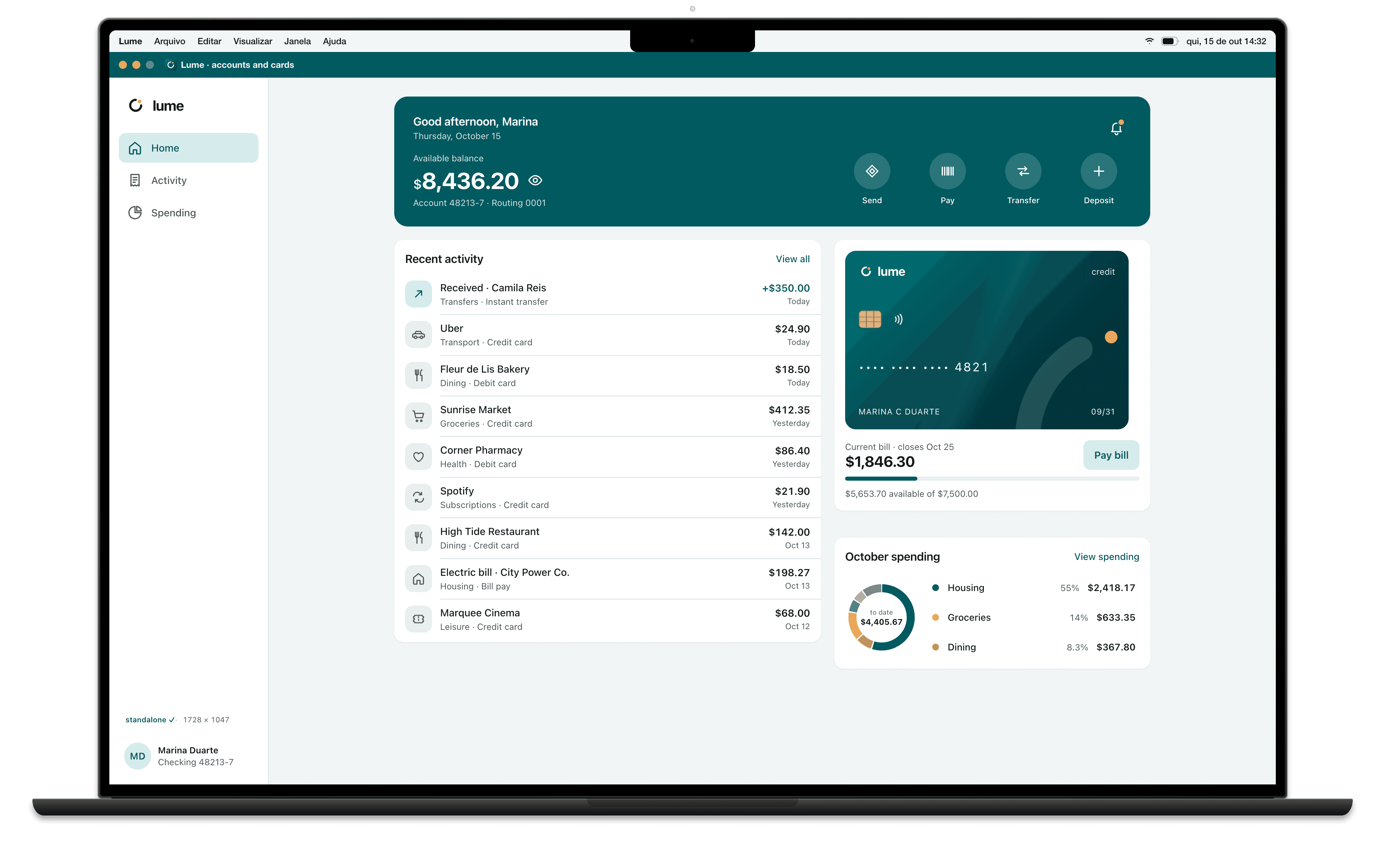
- Surface Pro 11 · 1440×960 @2x
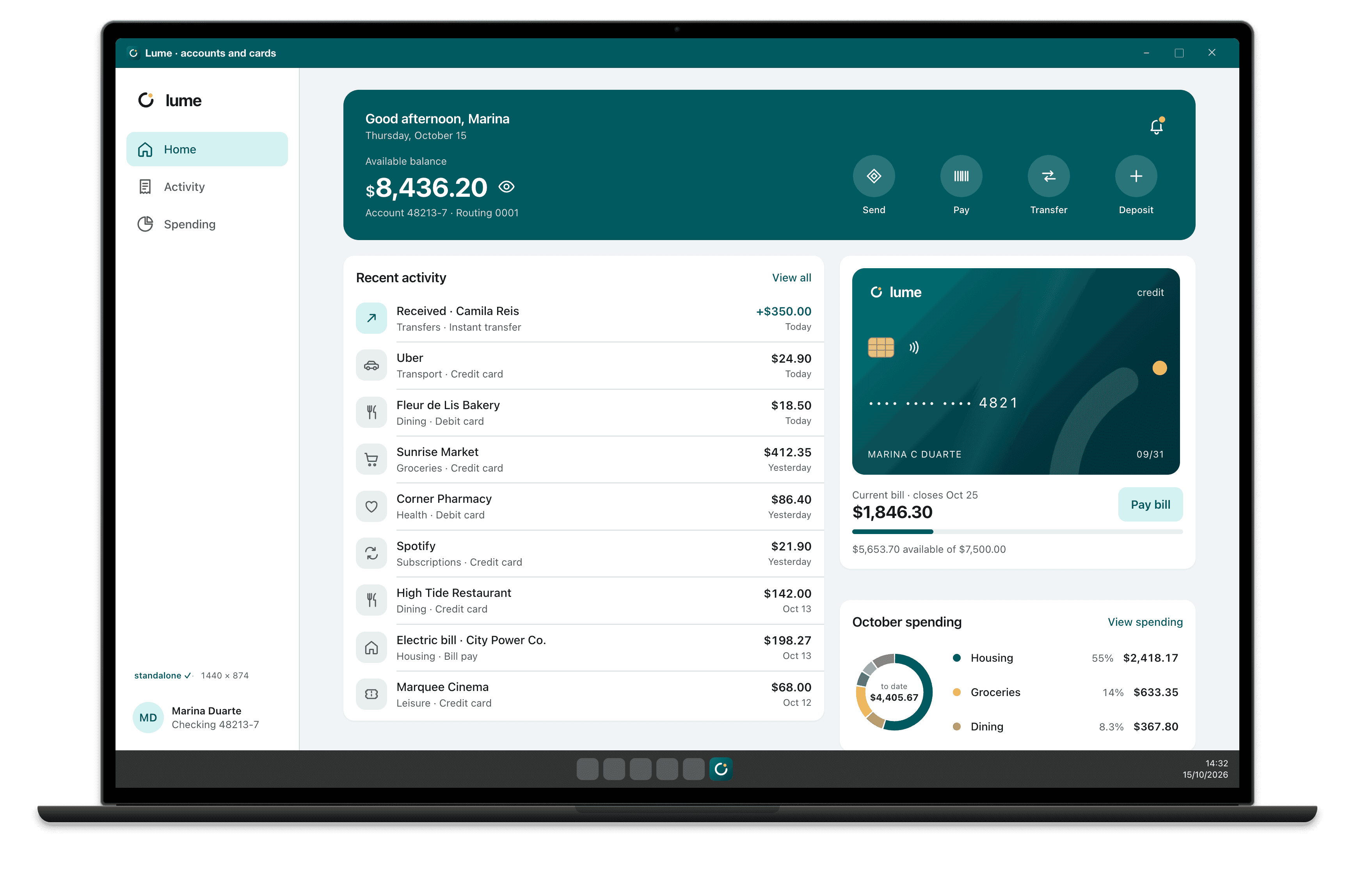
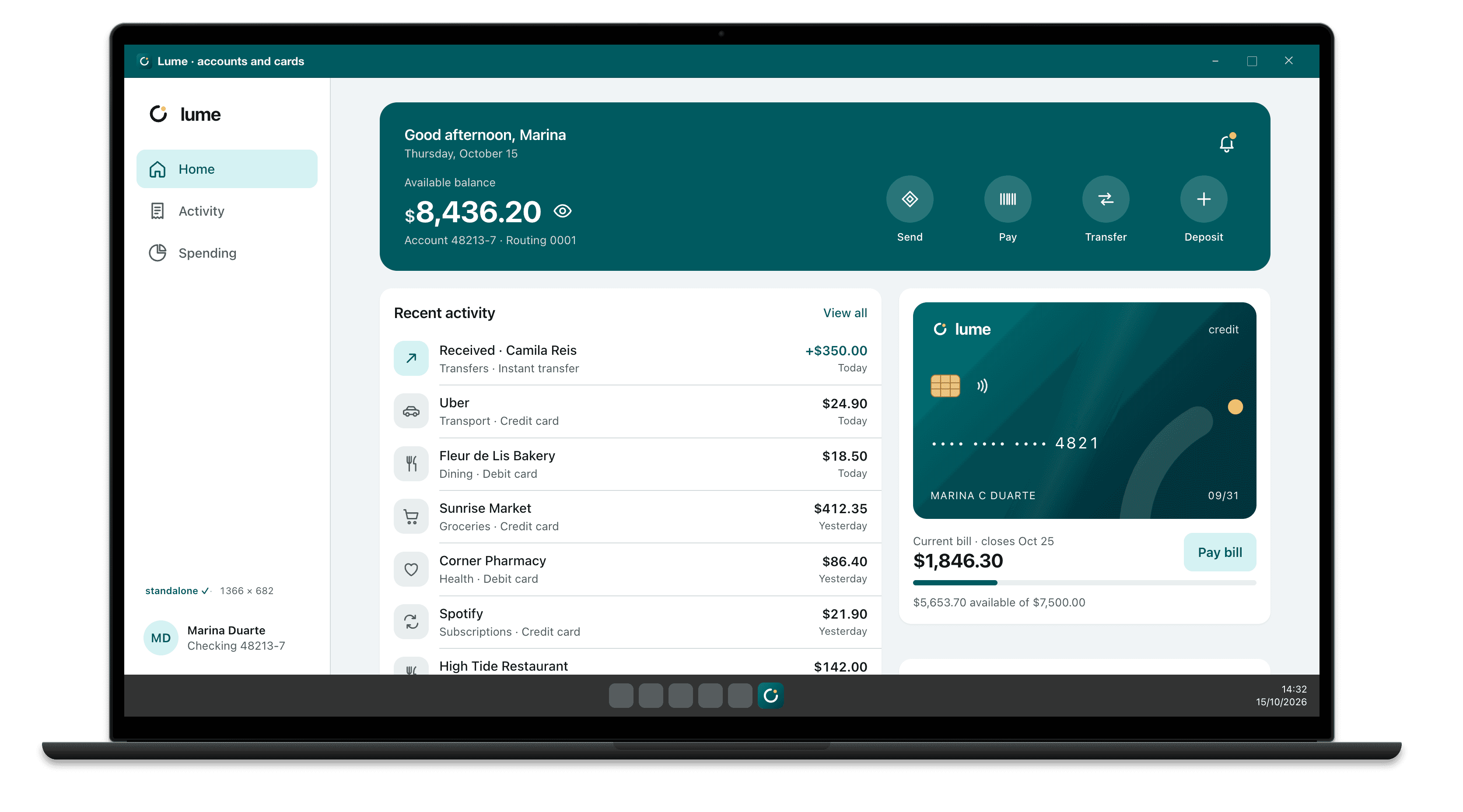
- Notebook Full HD · 1536×864 @1.25x
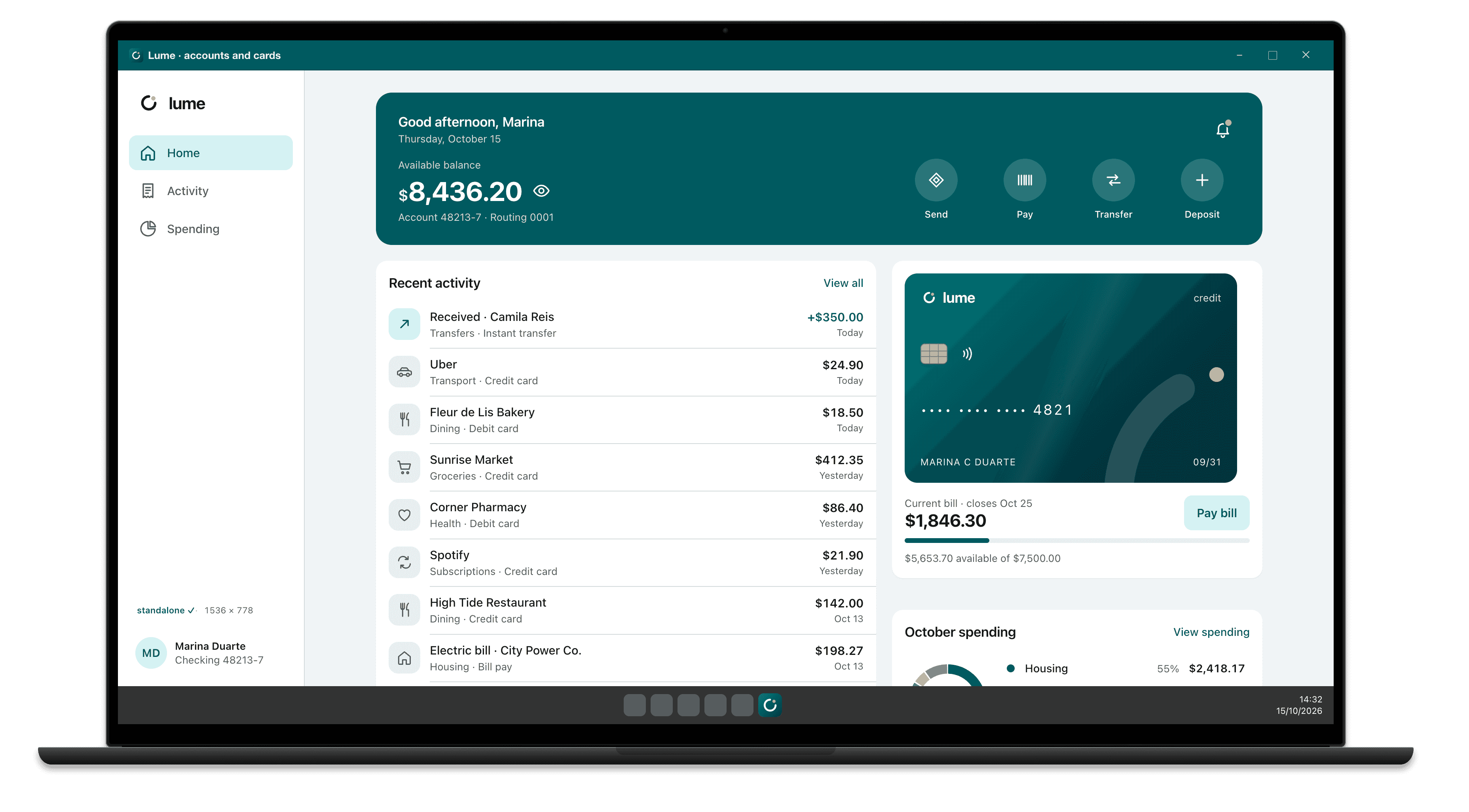
- Notebook 14″ Full HD · 1280×720 @1.5x
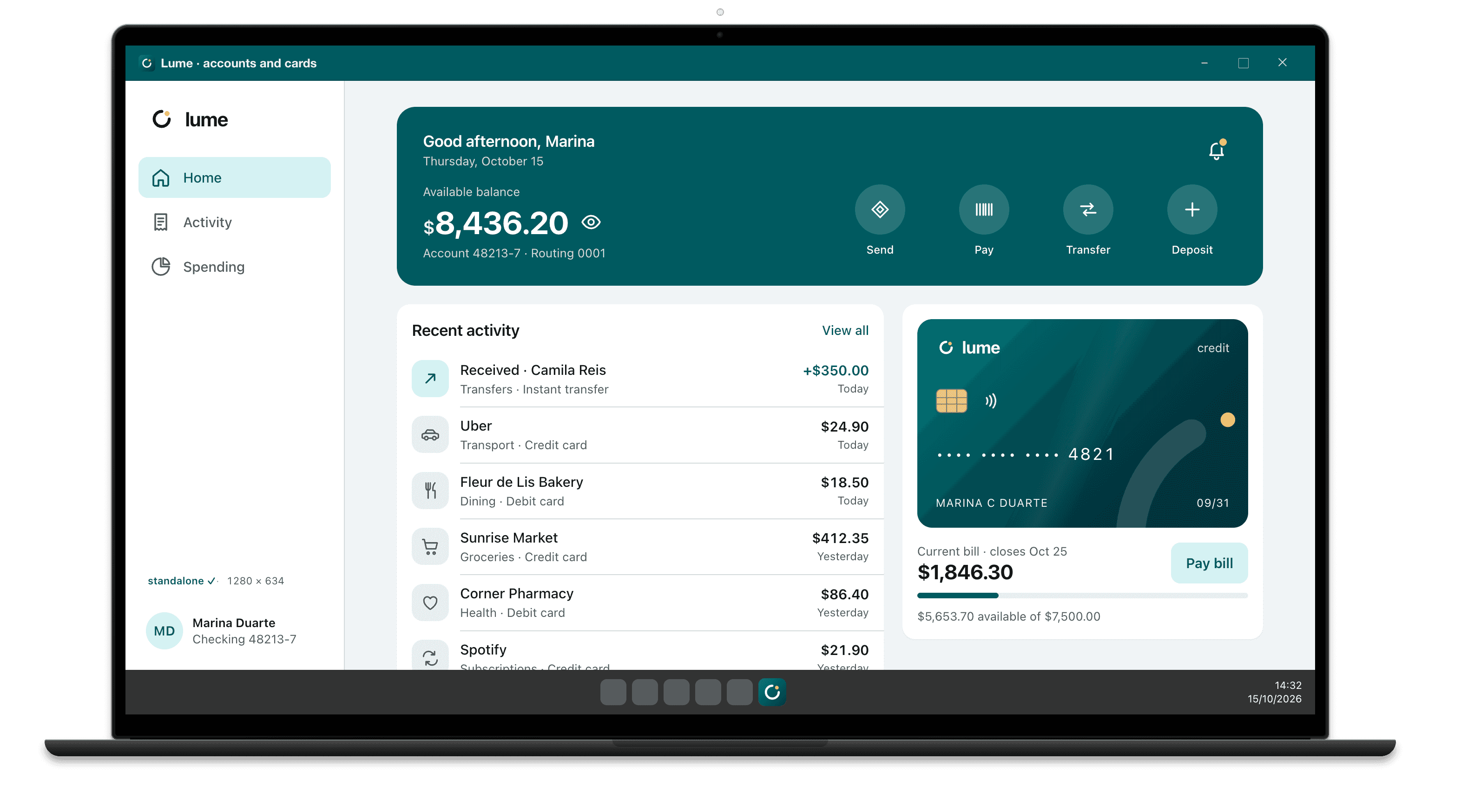
- Notebook HD · 1366×768 @1x
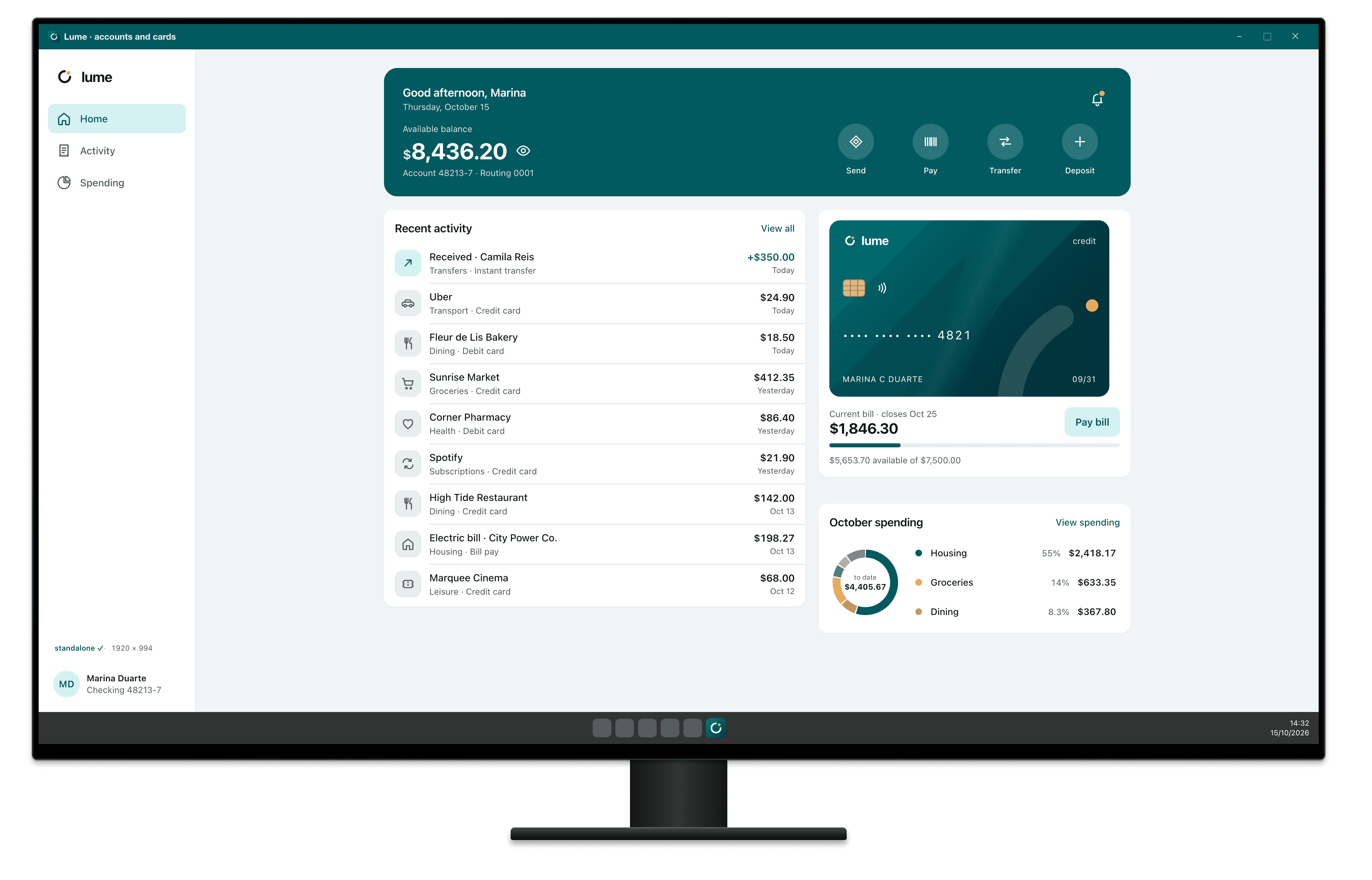
- Monitor Full HD · 1920×1080 @1x
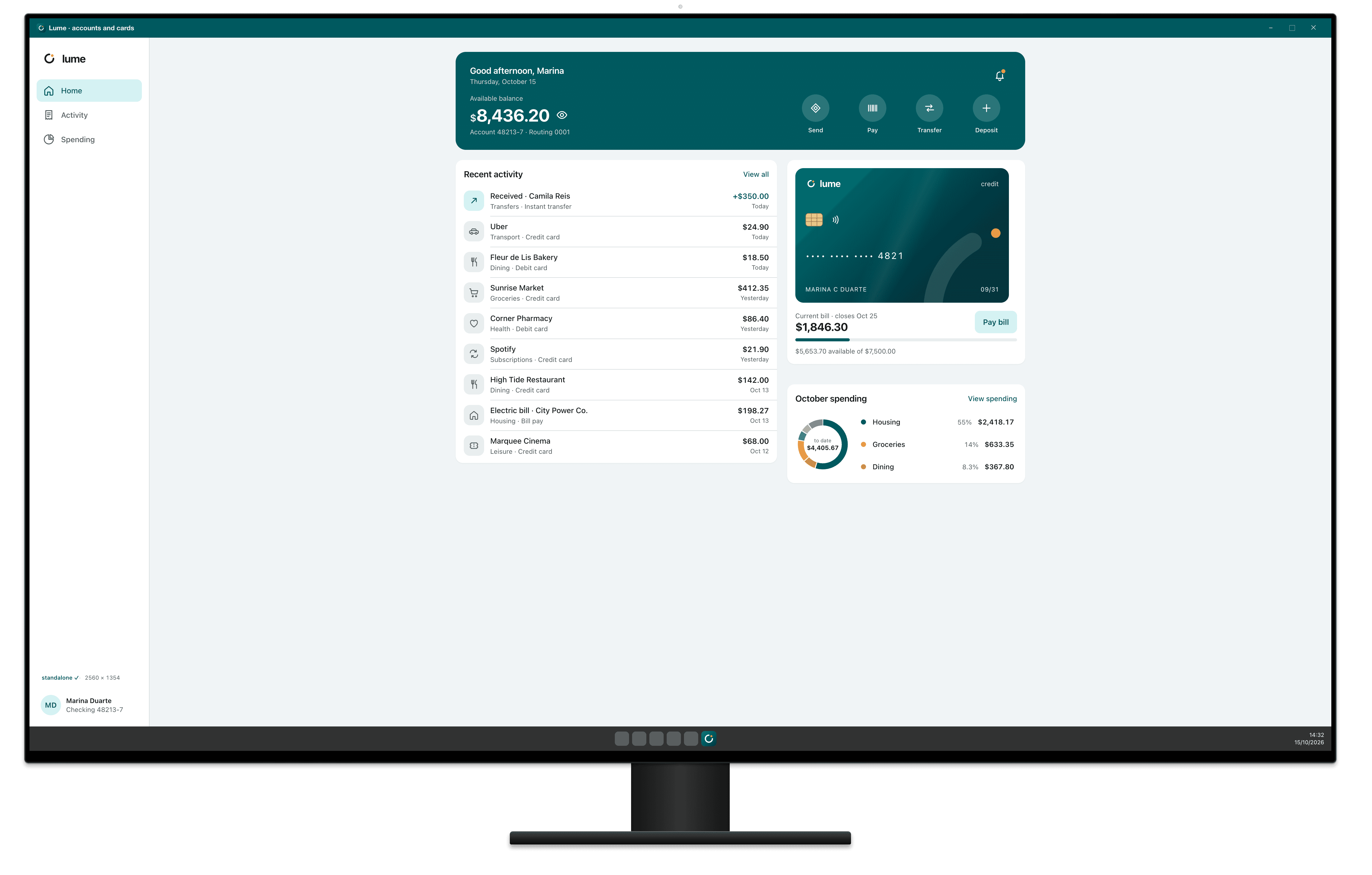
- Monitor QHD · 2560×1440 @1x
- Custom240–3840 × 240–2400@1 to @3Width, height, density and OS of your choice
Test the PWA the way it looks once installed.
After Add to Home Screen, the PWA loses the browser bar and gains a splash screen, a status bar in the manifest color and the device's safe areas.
That's where the button behind the home indicator, the header jammed against the Dynamic Island and the white splash show up. Breakpane shows all of it before you ship.
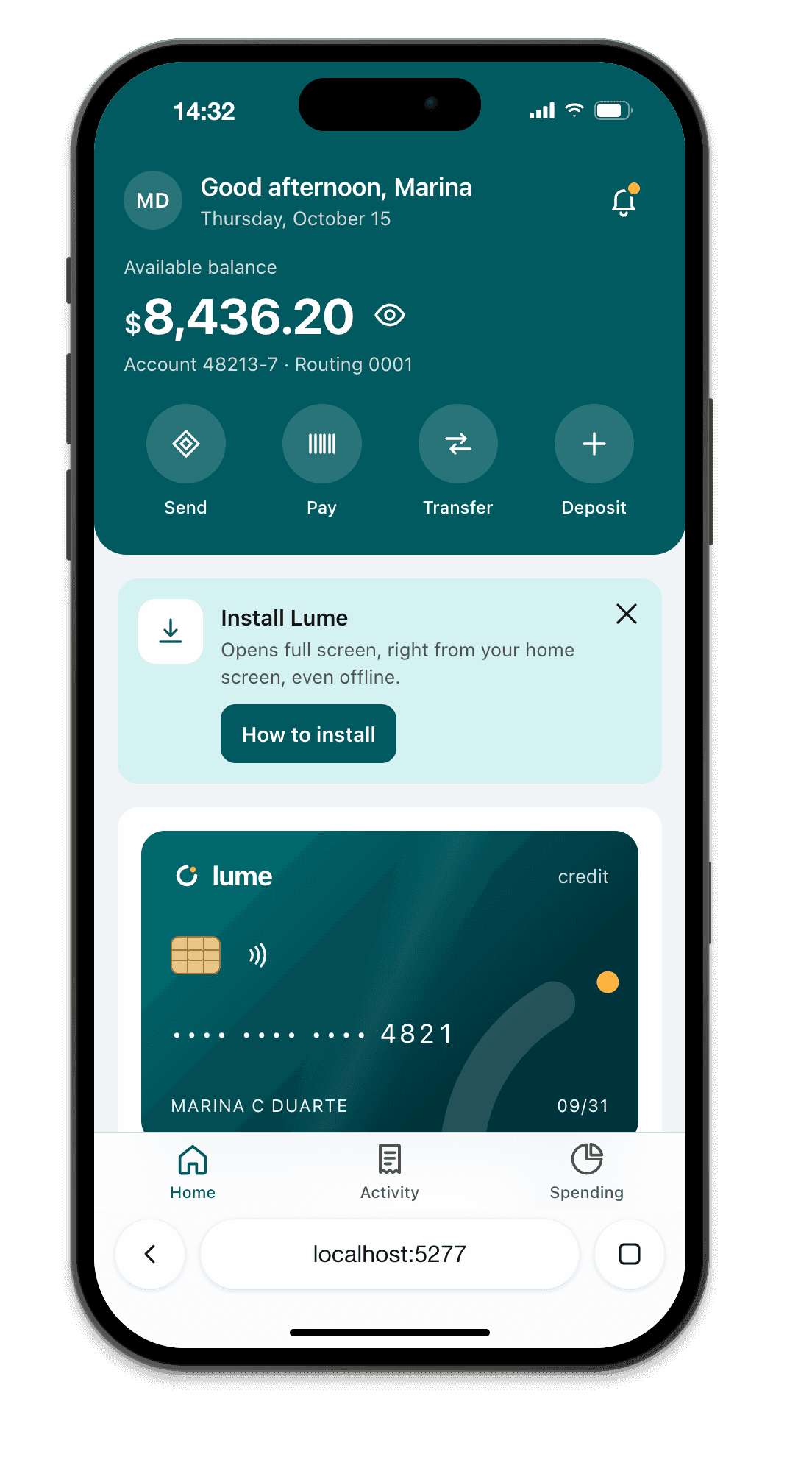
BrowserThe Safari or Chrome bar, the status bar painted with theme-color and the viewport of someone arriving from a link. 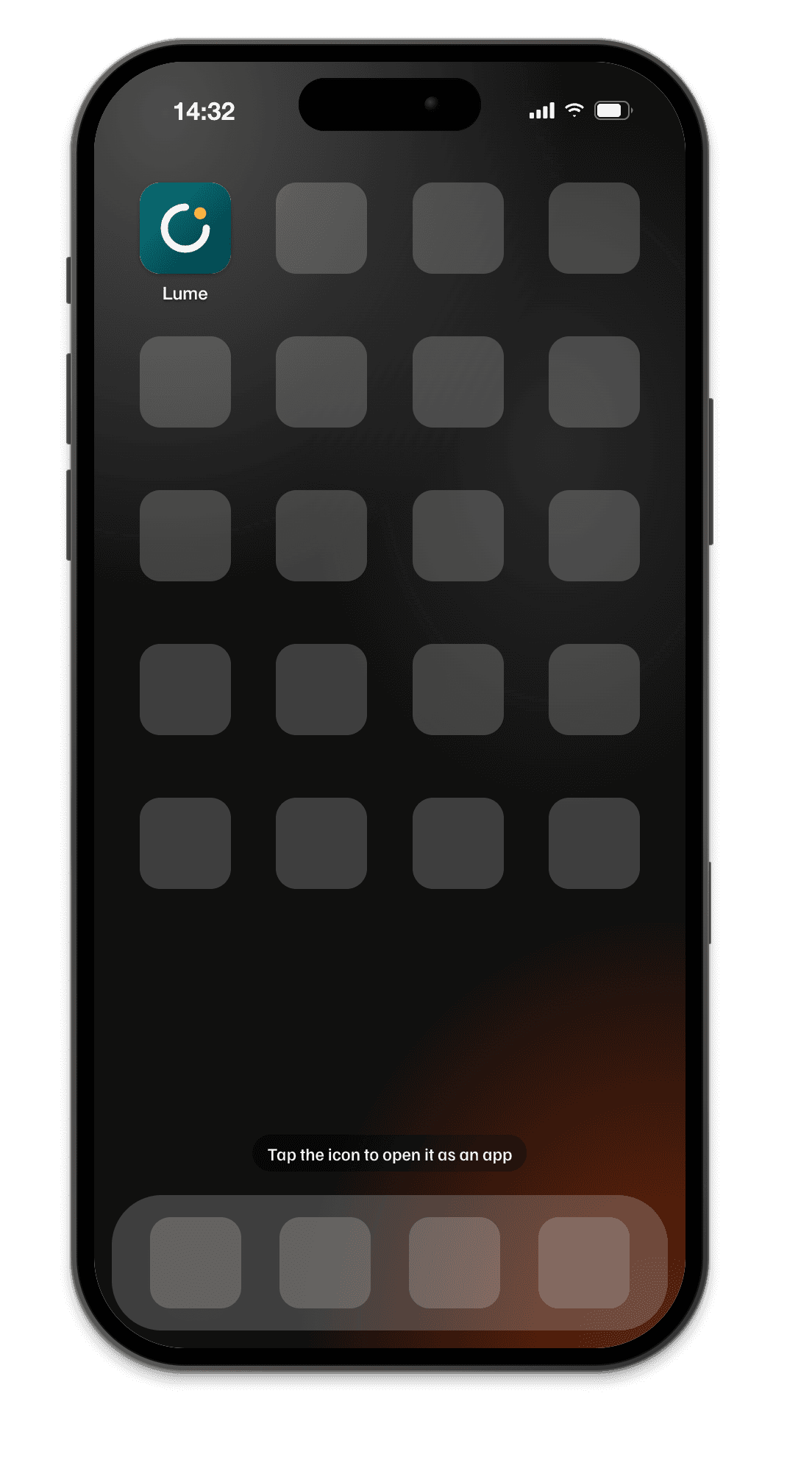
Home screenThe icon with the manifest's short_name; on Android, the maskable icon inside the circle. Tap it and it opens with the system animation. AppNo bar, with the splash, a black-translucent status bar and the model's safe areas.

Everything at hand, without leaving the device.
- Airplane mode (offline)
- Cuts the network for every device and shows what the service worker holds on to.
- Dark appearanceShift + Command + DCtrl + Shift + D
- The site sees prefers-color-scheme: dark without you touching your system settings.
- ZoomCommand + +Ctrl + + Command + −Ctrl + −Command + 0Ctrl + 0
- Zooms the whole frame in so you can see the pixel; Command + 0Ctrl + 0 fits it to the screen height.
- CaptureCommand + SCtrl + SShift + Command + SCtrl + Shift + S
- A PNG of the device with its frame and a transparent background, saved to the Desktop and copied. Ready for the PR or for Figma. Command + SCtrl + S on the frame; with focus on the page, Shift + Command + SCtrl + Shift + S.
- Developer toolsOption + Command + ICtrl + Alt + I
- The Chromium inspector, pointed at the page inside the device.
- Clear service workers and cache
- Deletes service workers and cache, keeping logins. Start from scratch without closing the app.
- RotateOption + Command + RCtrl + Alt + R
- Turns the device sideways and shows the safe areas in landscape.
- Move and resize
- Drag any part of the frame, or the dot above the device; pull a corner to change its size on screen, with the percentage next to it. The page keeps the device's viewport. Double-click the corner to go back to auto.
- New deviceCommand + NCtrl + N
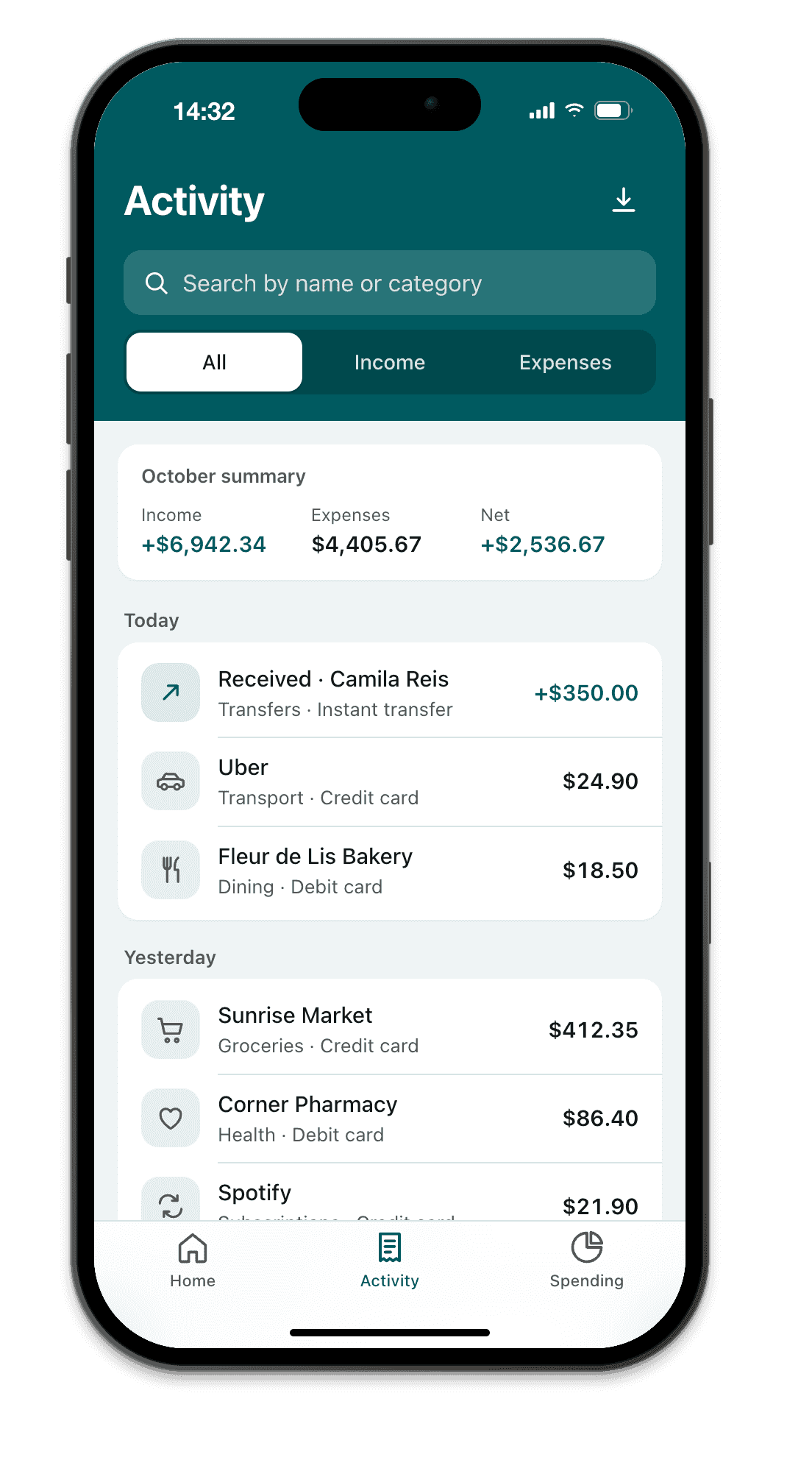
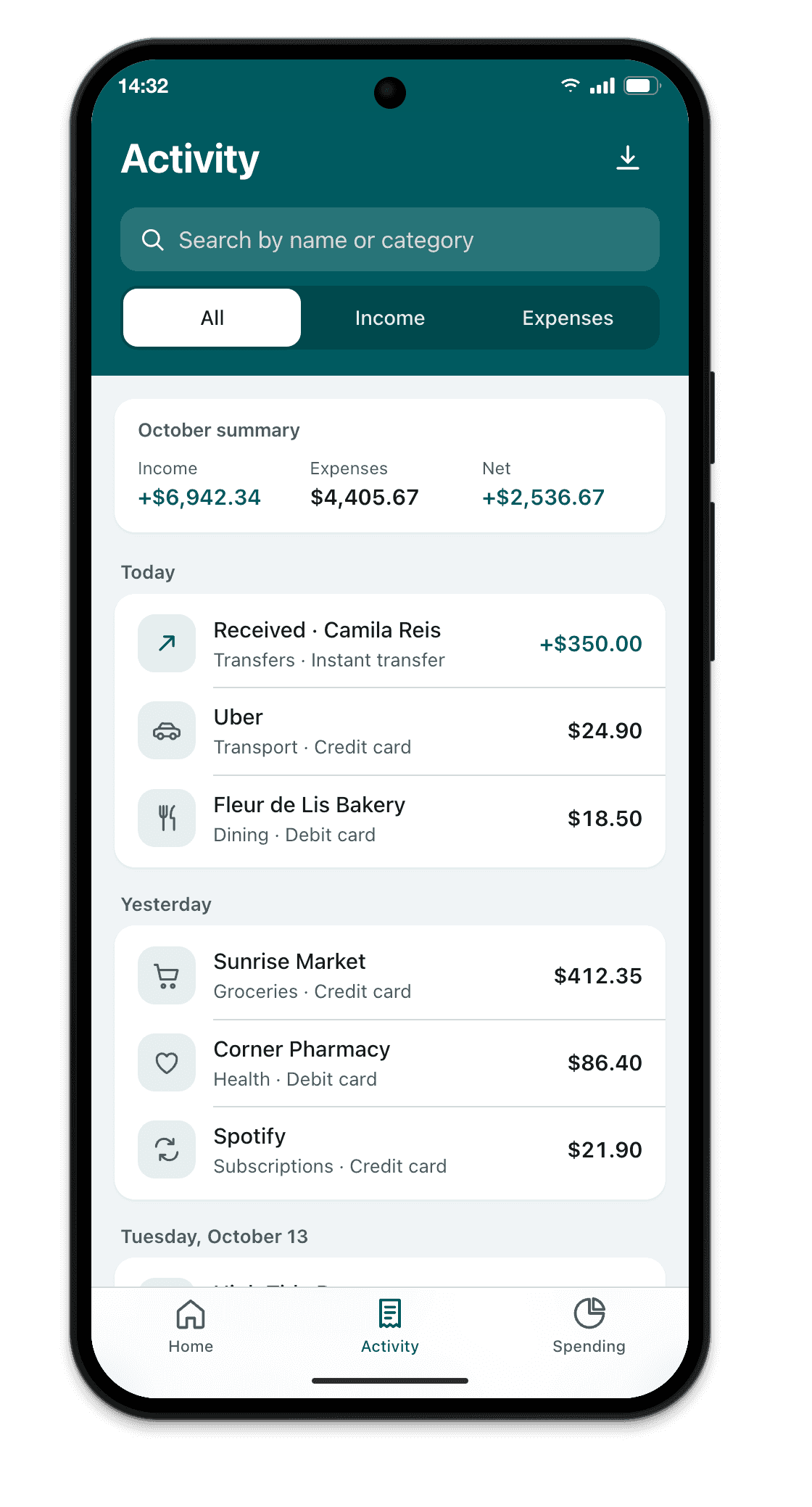
- Open more than one. Mirror navigation is on by default: click in one, and the others follow.
Mirror navigation
One plan, everything included.
Try it free for 14 days, no card. If Breakpane earns a place in your day, pick monthly or yearly.
YearlySave $29
$79 per year
Works out to $6.58 a month: $29 less than paying monthly for a year.
Subscribe yearlyI have a partner code
Subscribing for the account
Payment is processed by Paddle, Breakpane's authorized reseller: it issues the receipt and calculates your country's taxes at checkout. Refund within 14 days.
On any plan
- Every feature, on every device
- Coding agents (Beta), in the trial and the subscription
- Mac and Windows, on up to 3 computers
- Personal and commercial use
- Updates included while your subscription is active
- Email support, answered by people
- Card, PayPal or Pix (Brazil)
Breakpane runs on your computer.
You're on your phone. Send the link to your email and open it on your Mac or PC when you sit down to code.
Mac with Apple silicon or Intel and Windows 10 and 11. We use the email only to send this link, once, and don't keep it.
14 days free
Download and try it free for 14 days.
No card, everything unlocked. On day 3, we only ask for your email. After that, from $9 a month.
New in 1.2.10: Coding agents no longer ask to reconnect, open Breakpane when it is closed and keep each conversation's devices apart. see what's new
1 of 3Pick your system
2 of 3Download
3 of 3The first time you open it
On the Mac, the app is signed and notarized by Apple, so macOS just confirms you want to open an app downloaded from the internet. On Windows, from the Microsoft Store, there's no warning.
- Open the .dmg and drag Breakpane to the Applications folder.
- Double-click Breakpane. macOS asks if you want to open an app downloaded from the internet. Click Open.
- That's it. It shows up in the menu bar, not in the Dock.
- On the Microsoft Store, click Get. Windows downloads and installs it on its own, with no warning.
- Open Breakpane from the Start menu. It lives in the system tray, next to the clock.
Downloaded the .exe?
- Run Breakpane-Setup-1.2.10.exe.
- On the blue Windows protected your PC screen, click More info.
- Click Run anyway.
- That's it. Breakpane lives in the system tray, next to the clock.
With the installer in your Downloads folder (the Windows default), one PowerShell command removes the downloaded-from-the-internet mark and opens the installer without the blue screen, skipping steps 2 and 3. If it's in another folder, change the path in the command or follow the steps above.
Unblock-File "$HOME\Downloads\Breakpane-Setup-1.2.10.exe"; Start-Process "$HOME\Downloads\Breakpane-Setup-1.2.10.exe"

File details and security
SHA-256Breakpane-1.2.10-arm64.dmg
712c0cffd5af54d7e5d4052884c9ba65763709f92e80812cc3066441a7379f49Check it in Terminal: shasum -a 256 Breakpane-1.2.10-arm64.dmg
SHA-256Breakpane-1.2.10-x64.dmg
6b448c72dace1a40fd358be28d7693b3d5448e5adc526e6b1b268d3de5464308Check it in Terminal: shasum -a 256 Breakpane-1.2.10-x64.dmg
SHA-256Breakpane-Setup-1.2.10.exe
3861993aaf524ad3f3faa3404099dd9be03e02465872264608933721bd8f9bb0Check it in Command Prompt: certutil -hashfile Breakpane-Setup-1.2.10.exe SHA256
What you can check
The download comes only from here, the Microsoft Store and Breakpane's GitHub Releases. There are no mirrors.
The app sends nothing about your projects or the pages you open. The anonymous daily usage count can be turned off in More options.
On the Mac, the app is signed and notarized by Apple. On Windows, the Microsoft Store checks the package before publishing it.
Files in v1.2.10
- Mac with Apple siliconBreakpane-1.2.10-arm64.dmg130.5 MB
- Mac with IntelBreakpane-1.2.10-x64.dmg137.4 MB
- Windows 10 and 11Breakpane-Setup-1.2.10.exe111.1 MB
- Previous versions, notes and checksums on GitHub Releases
- Changelog
- Linux? Not yet. Ask for it on GitHub.
Questions? support@breakpane.com
Before you ask.
Does it look exactly like Safari on the iPhone?
It shows what defines the iPhone screen: viewport, density, user agent, touch, safe areas and the installed PWA, with standalone, splash, icon and offline. That's where almost every layout problem lives. The engine is Chromium, so anything specific to Safari, like elastic scrolling and WebKit bugs, is worth checking on an iPhone or in the Xcode Simulator before you ship.
How do I view a site in mobile mode on a PC or Mac?
In Chrome, Shift + Command + MCtrl + Shift + M opens DevTools device mode: fine for a quick look, but it's a rectangle inside the tab, it disappears when DevTools closes and it doesn't simulate the installed PWA. In Breakpane, the device floats above your editor with the model's frame, status bar and safe areas, and updates on its own when you save the file. It works as a responsive design tester that stays on screen while you code.
Can I see my site as it looks on an iPhone from Windows?
Yes. On Windows, Breakpane shows your site with each iPhone's viewport, density, user agent, touch and safe areas, including in App mode, as an installed PWA. The Xcode Simulator only exists on the Mac. What's left out is the engine: it's Chromium, so WebKit-specific bugs call for a real iPhone.
Is it safe to install Breakpane?
On the Mac, it's signed and notarized by Apple. On Windows, the Microsoft Store checks the package; the .exe isn't signed yet. You can check for yourself: the download comes only from this site, the Microsoft Store and GitHub Releases; every release includes its checksum; the app sends nothing about your projects and only connects to your localhost, the URLs you or your agent open, GitHub and the license server.
Is the app signed?
On the Mac, yes: since version 1.2.8, it's signed with a Developer ID and notarized by Apple. On Windows, the Microsoft Store version is verified by Microsoft and installs with no warning; the .exe installer on the site isn't signed yet, so SmartScreen may warn you.
How much does it cost?
The first 14 days are free, no card, everything unlocked. After that, $9 a month or $79 a year, or R$ 29 and R$ 249 in Brazil. Every feature on every plan, on up to 3 computers, Mac and Windows. Cancel anytime.
Is there a Windows version? What about Linux?
Windows 10 and 11, 64-bit, from the Microsoft Store: it installs and updates on its own, with no warning. There's also the .exe installer, which SmartScreen flags because it has no certificate yet. The device stays on top and the app lives in the system tray. No Linux yet: always-on-top and the tray behave differently in each environment (GNOME, KDE, Wayland, X11), and we won't promise what we haven't tested. Ask for it on GitHub.
Intel Mac?
Yes, in the same release: Breakpane-1.2.10-x64.dmg. It's less tested than the Apple silicon build; if something breaks, tell us on GitHub.
Which frameworks does it work with? What about hot reload?
Anything that serves HTTP on localhost: Vite, Next, Astro, Nuxt, SvelteKit, Angular, Remix, Rails, Django, Laravel, a python -m http.server. The Start button understands projects with a package.json, a dev script and a known frontend framework; anything else you open by URL. Hot reload is your dev server's own: Vite HMR, Next Fast Refresh. If the server goes down and comes back, it reconnects on its own.
Do I have to actually install the PWA to see App mode?
No. App mode simulates standalone instantly: the browser bar disappears, the site responds to display-mode: standalone, the splash shows up and the safe areas apply. And the service worker works on http://localhost without HTTPS, because Chromium treats localhost as a secure origin. To test over your network IP, you do need HTTPS.
Does it touch my files or send data anywhere?
On its own, it writes nothing to your project folder: it reads package.json to find the command and runs the dev script. A connected coding agent can ask it to save screenshots and reports to a folder of yours. Nothing about your projects or pages leaves your computer through Breakpane. The app sends only an anonymous daily usage count, which you can turn off, and talks to the license server.
Can I view a live site? And several devices at once?
Yes. Paste any URL: it's a good way to check the PWA in production, the home screen icon and the diagnostics over real HTTPS. Open more than one device (Command + NCtrl + N); with Mirror navigation on, click in one and the others follow. An iPhone SE and a 17 Pro Max side by side is the fastest test for a broken layout.
Which coding agents does it work with?
Any MCP-compatible tool over HTTP: Claude Code, Codex, Cursor, VS Code (Copilot), Windsurf, Claude Desktop and others. The most popular ones connect with one click; for the rest, Copy configuration gives you the block to paste. Then paste a Start here prompt into a new conversation; in Claude Code they're also commands, like /mcp__breakpane__test_site. It's in Beta and works during the trial and with a subscription.
Is it a phone simulator? Do I need Xcode?
It simulates the screen, not the operating system, and it doesn't need Xcode. It doesn't run iOS or Android and doesn't install mobile apps: it's Chromium with each device's viewport, density, user agent, touch, safe areas and display-mode, inside a frame with the real dimensions. That's why it's light and runs on Mac and Windows.
Where does Breakpane fit next to DevTools, the Simulator and a phone in hand?
DevTools device mode is for a quick look; a phone in hand and the Xcode Simulator, for the final check. Breakpane covers the middle: it stays open all day in front of your editor and shows every change on every screen while you code. Unlike Sizzy, Polypane and Responsively, it floats over your editor and finds your projects.
How do I report a bug or request a device?
On GitHub, under Issues, or by email at support@breakpane.com. Tell us the device, the mode and the framework. New device requests get added when they have reliable measurements.